
Sports
Sports lists what is on from yesterday to six days ahead, with live scores, and tells you which of your own channels shows each match. Picking a match plays it on the right channel.
The channel always comes from your playlist and its guide: the app looks the broadcaster up among your channels and checks your guide around the start time. It never adds a channel you do not have. When a broadcaster has versions in several countries, the app takes the one from the broadcaster’s own country first.
Who can use it
Section titled “Who can use it”Sports is open during the trial and with Premium, on phones and tablets, Android TV, Fire TV, Apple TV, LG (webOS) and Samsung (Tizen) televisions, Windows and the Mac. It also needs an IPTV Deck account: the login from your provider only adds the playlist, it does not sign you in to Sports.
| Sports says | Why | What to do |
|---|---|---|
| Sign in to see Sports | No IPTV Deck account is signed in on this device | Sign in |
| Sports is part of Premium | The trial has ended | See Premium shows the plans |
A kids profile sees the same Sports as the account, without the buttons: it asks the child to fetch a parent (Ask a parent to sign in on this device to see Sports, or Ask a parent if you would like live scores and matches here). See Kids profiles.
Where it is
Section titled “Where it is”- On a phone or tablet: the trophy in the header of the Live tab. It lights up with a red dot while a team you follow is playing. Sports can also have its own tab at the bottom of the screen: turn on Sports in Settings → Appearance → Bottom tabs (off until you turn it on). Sports also shows on Home, see Sports on Home.
- On a television, Windows and the Mac: Sports in the side menu. Like the other entries of the side menu, it can be hidden. Sports channels can have its own item right after it, see Sports channels.
The tabs
Section titled “The tabs”| Phone and tablet | Television, Windows and the Mac | |
|---|---|---|
| What you follow | For you | For you |
| Every match of the day | Matches (Events in a sport of races and tournaments) | Scores |
| The sports networks of your playlist | Channels | Channels |
| The list of what you follow | The gear in the header of For you | The Following button at the end of the bar |
For you
Section titled “For you”Once you follow a team, a player or a competition, For you is about what you follow, whatever the day and the sport:
- At the top, the match you follow that is live, or else the next one.
- Last results: the finished matches of the teams and leagues you follow from today and yesterday, newest first, your teams before the leagues.
- You follow: the next match of each team or player you follow, today or weeks ahead.
- A row for each league you follow, with what is on and what comes next. On a phone a league row opens and closes with a tap, and it starts open while one of its matches is live.
A finished match leaves the rows of its team and league and moves to Last results. When the app opens, For you shows what it showed last time at once and catches up with the latest scores a moment later, keeping the match you are on selected.
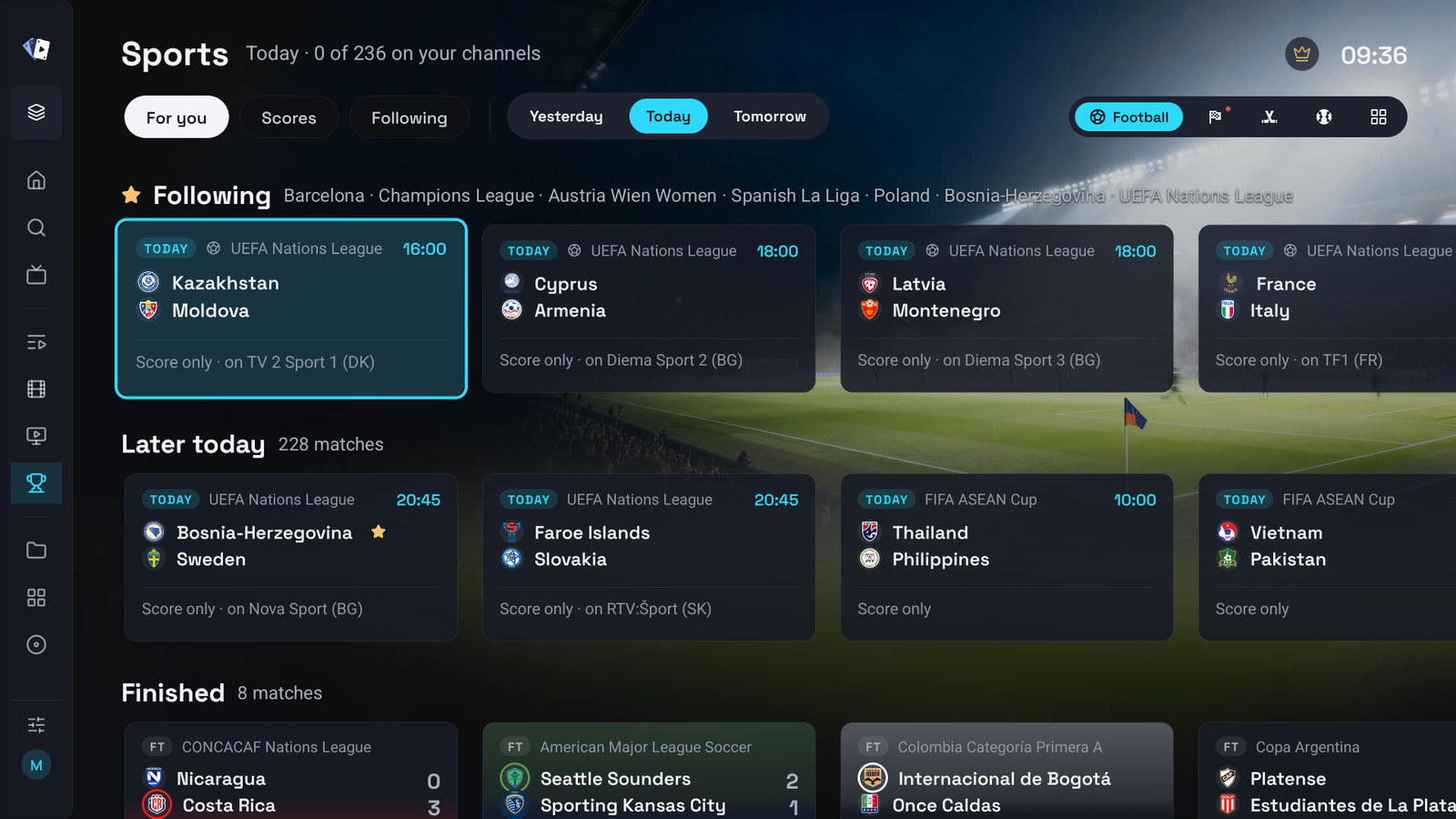
The phone opens on For you once you follow something, and on Matches otherwise. On a phone with nothing followed, For you offers Pick teams. On a television with nothing followed, For you shows the chosen day instead: Live now, Later today (Upcoming on another day), Finished and Highlights.
Finding a match
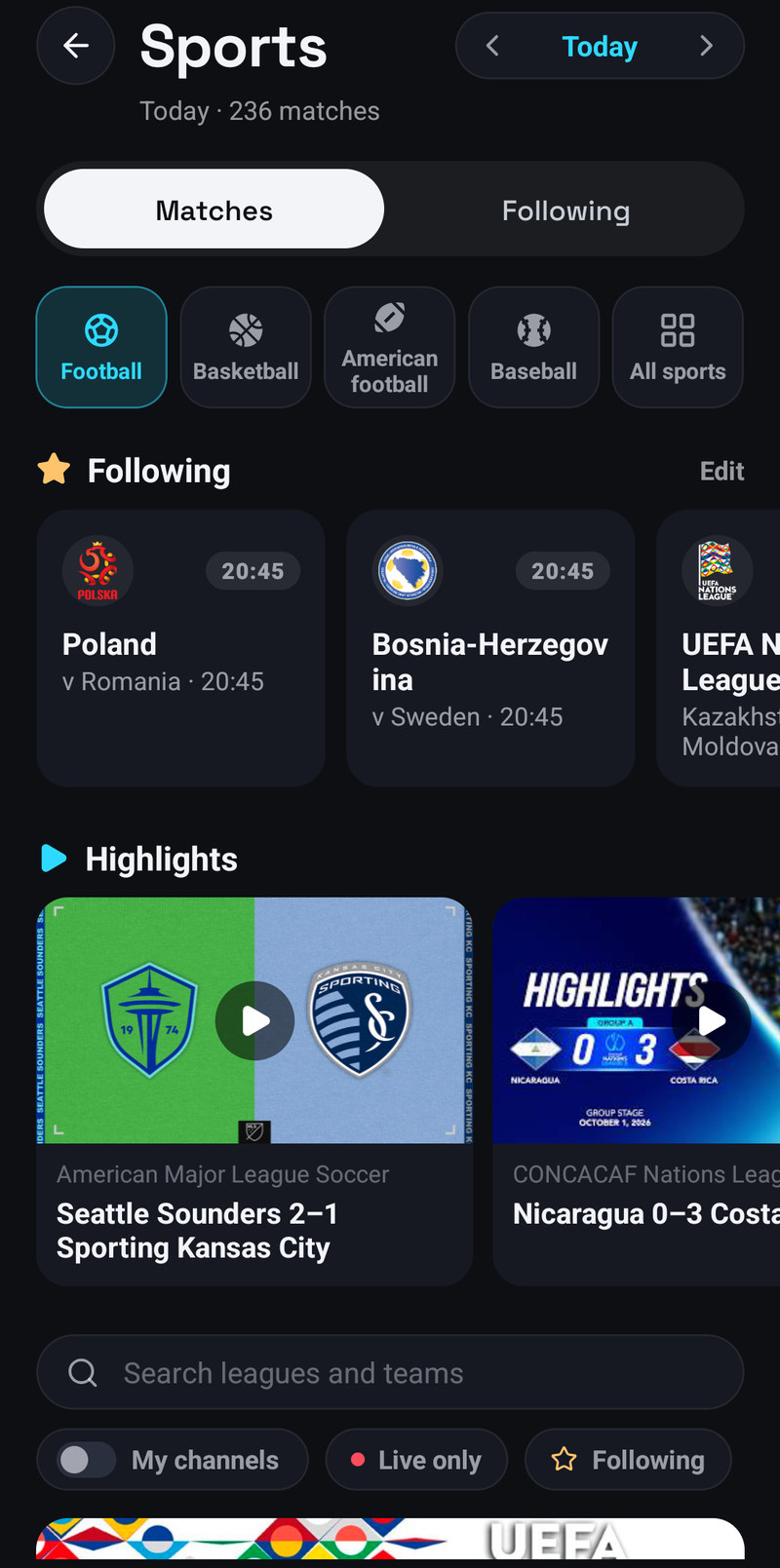
Section titled “Finding a match”On a phone the day and the sport are chosen at the top of Matches. On a television they are on the bar in Scores, and in For you while you follow nothing.
- The day: from yesterday to six days ahead. On a phone the arrows next to the date step through the days. On a television Yesterday, Today and Tomorrow are on the bar and More days opens the later ones.
- The sport: a row of sports and All sports, which opens the whole list. The sport you pick is remembered for your profile.
A match is listed under the day it is played by your own clock, so a late game on another continent shows under Today while it is on, and its time follows the Clock setting.
The sports are football, basketball, American football, baseball, tennis, Moto (Formula 1, MotoGP, Formula E, IndyCar and NASCAR), MMA (also boxing and wrestling), hockey, cricket, rugby, golf, handball, volleyball, darts, snooker, cycling and Australian football.
Each session of a race weekend, a rally, a golf tournament or a stage race, such as practice, qualifying, a sprint and the race, is its own tile, like a match, under the day it takes place.
Matches on a phone
Section titled “Matches on a phone”Matches starts with the top match on your channels, and on today’s page the matches of what you follow and Highlights, the latest videos from your leagues. Under them are a search for leagues and teams and three filters:
| Filter | Shows |
|---|---|
| My channels | Only matches that are on one of your channels |
| Live only | Only matches being played now |
| You follow | Only what you follow. Every other match, and its live score, is left out until you turn it off. It is kept per profile and synced to all your devices |
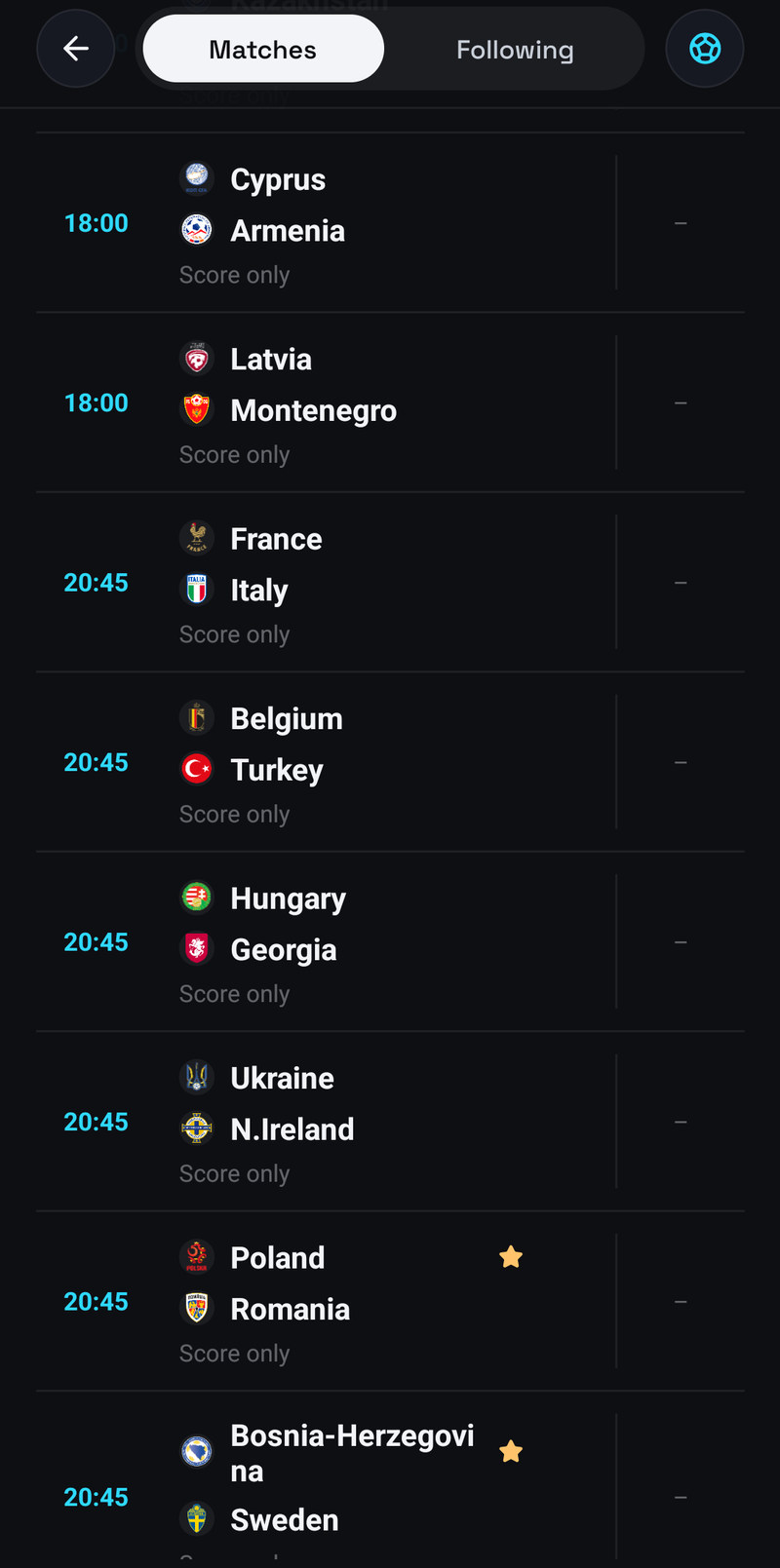
Then come the leagues, each with its matches, and in team sports a short league table.
Scores on a television
Section titled “Scores on a television”Scores lists every match of the day by league. On the left are Live only, with how many are live, My channels only, and Jump to, a list of leagues: OK there scrolls to the league and Right moves into the list. In team sports the table of the league you are on sits on the right.
Choosing sports and leagues
Section titled “Choosing sports and leagues”Leagues are listed by name: pinned ones first, marked with a pin, then the ones you follow, marked with a star, then the rest. Holding a league opens its options:
| Option | What it does |
|---|---|
| Pin to the top | Puts the league at the top of the list (Unpin from the top undoes it) |
| Follow the league | Adds it to what you follow |
| Hide | Takes its matches out of Sports. Only for a league you do not follow |
To hold a league, hold its heading in Matches on a phone, or hold OK on it in Jump to on a television (a right-click on a computer).
To hide whole sports or pick leagues from a list, use Choose sports at the top of All sports on a phone, or Choose sports and leagues at the top of All sports on a television. The same page is Sports and leagues in Settings → Sports. What you hid is listed under Hidden at the top, where you can bring it back. At least one sport stays shown, and teams and competitions you follow always show, hidden or not. Each profile keeps its own choice, and the account panel edits it too.
What a match says
Section titled “What a match says”Every match says where it is:
| It says | What it means |
|---|---|
| A channel name | It is on that channel of yours |
| Might be on … | A channel of yours probably has it, but it could not be confirmed |
| Checking your guide… | The app is still looking for it in your guide, for example right after you sign in. The channel appears by itself when it is found |
| Not on your channels | None of your channels shows it. You still get the score. On a television card the broadcaster follows, for example Not on your channels · on Paramount+, when it is a streaming service or a channel you do not have |
| Watch from start | A finished match whose channel still keeps it in its catch-up. It plays from the kick-off |
A finished match without catch-up shows no channel at all and opens the match centre. A match becomes playable 20 minutes before it starts. A lit bell marks a match with a reminder or a kick-off alert on the way.
What a press on a match does:
| Device | Press | Hold |
|---|---|---|
| Phone and tablet | A tap on the row opens the match centre. The button at the end of the row plays it (a play button), plays it from the kick-off (an arrow), checks a channel that might have it (a question mark) or sets a reminder (a bell) | |
| Television | OK plays it when it is on one of your channels and live or starting within 20 minutes, plays it from the kick-off when it finished and catch-up has it, and opens the match centre otherwise | Hold OK opens the match centre |
| Windows and the Mac | A click works like OK | A right-click works like hold OK |
The match centre
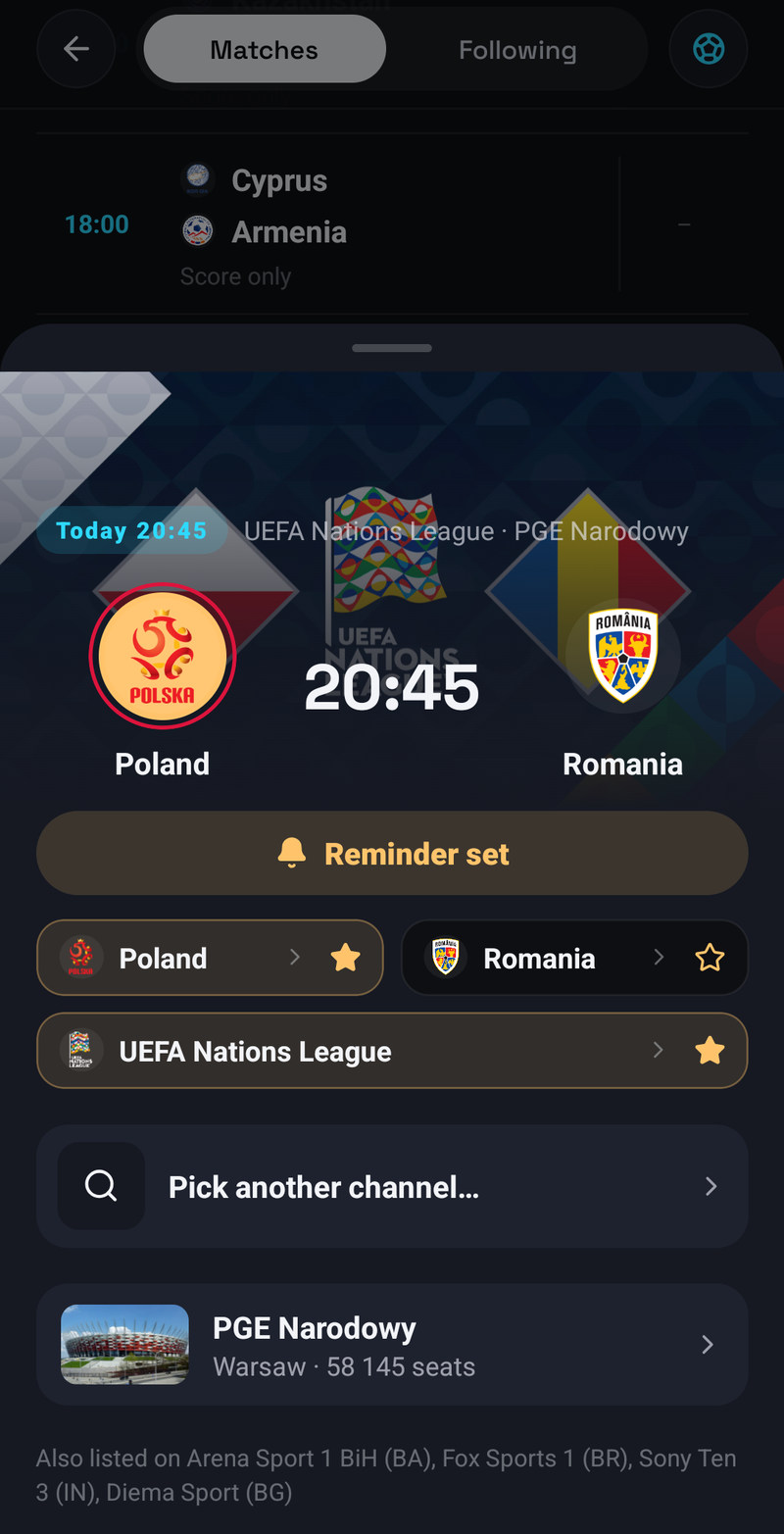
Section titled “The match centre”The match centre is the page of a match: a sheet on a phone, a panel at the side on a television, Windows and the Mac. It has, where they apply:
- Watch on the channel that has the match, and Multiview to put it in a window next to what you are watching, on devices with multiview.
- Remind me, before the start. The reminder tells you the channel. On a television and on a computer, a match that a kick-off alert already covers says Alert while IPTV Deck is open instead.
- Follow each team and the competition.
- Show score, when Hide scores is on.
- A row of boxes, Events, Players, Table and Teams (Events & stats on a phone), that jumps straight to that part of the page without scrolling past every channel. Events comes once the match has started, Players only with basketball stats.
- Watch on · your channels, the channels that carry it, and Might be on, marked Unconfirmed. Each says why it is there: Listed for a broadcaster, Your guide shows it, Channel named after the teams, Team channel: and the team, or On your channel for one you picked. On a television each also shows what is on it at kick-off. The channel that holds the rights in your country comes first, such as Ligue 1+ in France, with the others as the next choice. A channel from another country shows only when your guide names the match on it, not because it has the same name. Also listed on names broadcasters you do not have.
- Pick another channel… points the match at any channel of your playlist, with sports channels suggested first and a search. Your pick shows as On your channel for this match on every device of your profile that has the same playlist, also one you added on each device yourself. When the picked channel is in a playlist that is not open on a device, the match says so under Pick another channel…. Use the listed channels again drops your picks. Up to three channels can be linked to one match, see Several channels for one match.
- Events and statistics, line-ups, the league table, the venue, and for a race the season and the full classification, where the data has them. The matchday of a league opens with every match of its round. Basketball games of the NBA, the WNBA and college basketball add the stats of every player and the game leaders, see Basketball stats.
- A team’s name opens the team’s page with its matches and results. On a television it opens scrolled to the team’s nearest match.
- After the match, Watch again: a recording from the channel’s catch-up, played from the kick-off, a replay in your guide that is on now, or a later replay you can set a reminder for. Then Watch highlights. A television that cannot open the highlights shows a QR code to watch them on the phone.
Basketball stats
Section titled “Basketball stats”For the NBA, the WNBA and college basketball, on the phone, the tablet, a television, Windows, the Mac and LG TVs:
- A game: the stats of every player and the game leaders, on its page and in the match centre over the picture.
- A team’s page: its season stats and its players.
- League leaders of the season.
- A player: season averages and recent games.
With Hide scores on, a game’s player stats stay hidden until you choose Show score.
Several channels for one match
Section titled “Several channels for one match”Link up to three channels to one match, for a backup stream or another commentary language:
- Before the match, tap a channel under Channel for this match (OK on a television), or tick channels in Pick another channel…. Each one you tick is added: ESPN 2 added as channel 2 for this match. Tick it again to remove it. With two or more, the rows show their number instead of a tick.
- The first one plays when you open the match. A row such as Play ESPN 2 first moves that channel to the front, before and during the match.
- While the match plays, the next channel is one press away: its row, marked On your channel, in the Sources tab of the match centre in the player, or Next picked channel in the player, next to the match button, on the phone and on a television. It goes from the first to the second, and from the last back to the first.
A fourth one is refused with Up to 3 channels for one match. Remove one first. Nothing switches by itself: when a stream stalls, you choose the next one. The picks belong to your profile and follow it to your other devices; the account panel lists them in their order and can clear them, but not reorder them.
Channels of your provider’s league packages
Section titled “Channels of your provider’s league packages”Many providers sell league packages with a channel for each game or each team (NBA, NHL, NFL, MLB, DAZN or Game Pass feeds). Sports finds them too: every channel named after the game shows with the match, a channel whose guide names the game counts as well, also a block that covers the whole day, and the channels of both teams show under Might be on. A channel of a youth game between the same clubs does not show with the senior match.
Watching from Sports on a phone
Section titled “Watching from Sports on a phone”Watch opens the match with the picture at the top and the match centre under it: the teams, Follow, a strip of Other live matches to switch to, and the same tabs as the match centre in the player. A button on the picture takes it full screen.
Sports channels
Section titled “Sports channels”Channels gathers the sports networks of your playlist in one place, such as ESPN, TSN, NBA TV or Sky Sports, with their logos. Each tile shows what is on now, with a progress bar, or LIVE with the match when the network is showing one, and what comes next. Channels in categories you hid are left out.
The groups are All channels, League networks, Sports networks, then every country of your playlist, your own first and International last. Regional networks, such as the US and Canadian regional sports channels, are in All channels and in their country. On a television, Windows and the Mac the groups are a column on the left, like in the TV Guide, with the preview frame at the top; with Hide categories while browsing on, the column slides away as you move into the tiles and comes back with Left. On a phone and tablet the groups sit above the list.
| Device | Watch a channel | Pick another version |
|---|---|---|
| Phone and tablet | Tap it | Press and hold the tile. A tile with copies says Versions and how many |
| Television | OK plays it in the frame at the top, OK again full screen. Nothing plays while you only move through the channels | Hold OK on the tile. A tile with copies says how many channels it has |
| Windows and the Mac | A click works like OK | A right-click |
Copies of one network, such as the HD, the 4K and the US copy of NBA TV, share a tile. Without a pick, the app chooses the copy: your country first, then the best quality, and a copy that is showing a match comes first.
The version you pick is marked Your pick and stays the tile’s version, also after the playlist refreshes, until you pick another one or choose Pick automatically, which goes back to letting the app choose. Pick automatically shows only once you made a pick, and it plays nothing. With a pick, the tile always plays that copy, even when a match is on another copy. A short message confirms each change. The pick belongs to your profile and follows it to your other devices, and the account panel lists your picks so you can drop one. When the picked copy leaves your playlist, the tile goes back to the automatic choice, and to your pick when the copy returns.
When your playlist has no sports networks, Channels says No sports channels found.
On a television, Back from a channel you opened in Channels returns to that channel, not to the first one of its row.
Sports channels in the side menu
Section titled “Sports channels in the side menu”On a television, Windows, the Mac and LG and Samsung TVs, Sports channels can have its own item in the side menu, right after Sports, so the list opens in one step, without the scores and the other tabs. It is off until you turn it on: tick Sports channels in Settings → General → Side menu, or in the Side menu group of the device in the account panel (Device settings). The screen is the same list with its groups, under the title Sports channels with the number of channels. It needs Sports to be open to you, as the Sports item does.
Following
Section titled “Following”Follow teams, competitions and, in sports without teams, players. What you follow is kept per profile and synced to all your devices. Their matches come first everywhere in Sports.
To add something, open the list of what you follow (the gear on a phone, Following on a television) and choose Add teams or competitions. Pick a sport, then search, browse the popular ones, or Browse by country for every league the sports data knows. A switch chooses between teams (or players) and Competitions.
Picking a team, a player or a competition opens its page first, with its next matches and last results, and Follow is there. To follow straight from the list:
| Device | Open the page | Follow or unfollow |
|---|---|---|
| Phone and tablet | Tap the row | Tap the star, or hold the row |
| Television | OK | Hold OK |
| Windows and the Mac | A click | A right-click |
A league’s page on a phone has the Follow star in its header too. In the match centre you follow both teams and the competition with one press each.
The list of what you follow groups it by sport, and within a sport by league when your teams play in more than one, for example NBA, WNBA and college basketball apart. Competitions you follow sit with their teams, or under Competitions. A team’s page shows its next matches and last results.
In tennis you follow players: a player’s match shows while it is on, with their next match and last results, and the kick-off alert comes before they play. A player’s page shows their ATP or WTA ranking, their points and how many places they moved since the last ranking, and players in the top 25 have their ranking before their name in match lists.
A few leagues have teams but no matches yet. When you open such a league to add teams, it says so: its teams can be followed, but they show no games, scores or alerts until matches are listed.
Kick-off alerts
Section titled “Kick-off alerts”Kick-off alerts tell you 15 minutes before a match of a team or player you follow, and before an event of a competition you follow in a sport without teams, such as Formula 1 or golf. A followed football league does not alert for every one of its matches. The time is fixed. The alerts are turned on and off in Settings → Sports, and in the list of what you follow; the setting stays on the device.
| Device | How it comes |
|---|---|
| Phone and tablet | A notification with Watch when the match is on one of your channels, Watch on TV (see Watch on TV) and Match. On Android the app asks once for permission to set exact alarms, so that the alert is not late |
| Television, Windows and the Mac | A panel over what you are watching while IPTV Deck is open, with Watch when the match is on one of your channels |
| Android TV | Also over other apps while IPTV Deck is closed, with Alerts when IPTV Deck is closed in Settings → Reminders, see Reminders |
When a team you follow and a competition you follow play at the same time, the team’s match comes first on Home.
Removing the alert for one match
Section titled “Removing the alert for one match”Settings → Reminders on the phone and on a television lists the coming alerts under Kick-off alerts. Tap the bell next to a match on the phone, or press OK on it on a television, and that one match stays quiet on all your devices while you keep following the team. The Sports page of the account panel lists the matches you removed under Kick-off alerts you removed and can bring an alert back. See Reminders.
In the player
Section titled “In the player”Sports mode puts live scores over what you watch. It is on whenever you play something while Sports mode is on in Settings → Sports, and for the channel you are watching you can turn it on or off with Options → Sports mode on a television, Windows and the Mac, or Player settings → Sports mode on a phone. Changing channel keeps it; a film or the end of playback goes back to the setting.
It shows the scores of every team and league you follow, from all sports at once, plus the match you started from Sports. When one of them scores, a card pops up named for its sport: a goal, a touchdown, a run, a try or a set.
| Setting in Settings → Sports | What it changes |
|---|---|
| Other scores in the player | On: the player controls show a score card for the match you watch and for matches on other channels, and the popups come for all of them, also during films and series. Off: only the match on the channel you watch |
| Goal alerts | Off: no popups, the scores stay |
With sports mode on, the player also has a list of the matches that are on: Matches on a television, with how many there are, and the trophy, Other live, on a phone. The match on the channel you watch is under On this channel; on a television the others are grouped into Live on your channels, Might be on and Not on your channels. Picking one switches to its channel. Hold a match to pick several, and Show in multiview opens them together. Turn off sports mode is at the end.
On a television, Windows and the Mac the score cards start below a long programme description instead of hiding under it.
The match centre in the player
Section titled “The match centre in the player”When the channel you watch shows a match, the player has a Match centre button with the score (the trophy with the score on a phone). It opens the match centre over the picture: every channel of your playlist that shows the match, with the one playing marked Playing, so you can switch while the picture keeps playing. When the channel you are watching is not on the list, it says Not on the list yet. Choose it to save it. Next to it are Follow for both teams, Show score with Hide scores on, and on a television Multiview.
Its tabs are Sources, Box score, Players, Stats, Lineups, Leaders and Table, each only when there is something in it. On a television, Windows and the Mac the tabs sit on the right, and with sports mode on the last tab is Other matches (Other events in a sport of races). On a phone the trophy at the top of the match centre opens the other matches, and when the channel shows more than one match, you pick which one.
Sport on this channel
Section titled “Sport on this channel”Sport on this channel lists the matches found on a channel, each with a reminder. It is in the options of a channel: in the player’s Options and in the channel’s menu on a television, and in the menu you get by holding a channel on a phone.
Hide scores
Section titled “Hide scores”Recorded a match to watch later? Turn on Hide scores in Settings → Sports and matches show without scores and results: on cards, in lists, in Last results, on Home, in the match centre, in the player and in the player stats of a game. The status stays, so you still see that a match is live or finished, and so do league tables (without the form column), team records and highlight pictures.
Show score on a match, in its match centre on a phone and among its buttons on a television, shows that one until you close the app. On a television Hide score covers it again.
Each profile has its own setting, kept in sync. A kids profile gets it from the Sports page of the account panel.
Sports settings
Section titled “Sports settings”Settings → Sports on a phone, and Sports in the Library group of the settings on a television, Windows and the Mac:
| Group | Row | Options | Kept |
|---|---|---|---|
| Scores | Hide scores | On or off | Per profile, synced |
| Team colours: match cards and scores take the colours of both teams | Off, Subtle (default) or Full | On the device | |
| Matches | Sports and leagues: what Sports hides | Opens the list of sports and leagues | Per profile, synced |
| Kick-off alerts: 15 min before something you follow starts | On (default) or off | On the device | |
| Player | Sports mode: live scores and matches over any channel | On or off (default) | On the device |
| Other scores in the player | On (default) or off | On the device | |
| Goal alerts | On (default) or off | On the device | |
| Home (phone) | Sports on Home | Opens Settings → Appearance, where the Sports row and the pinned match are |
On a television the Player group notes that the Sports hero and the Sports row are in Settings → Home.
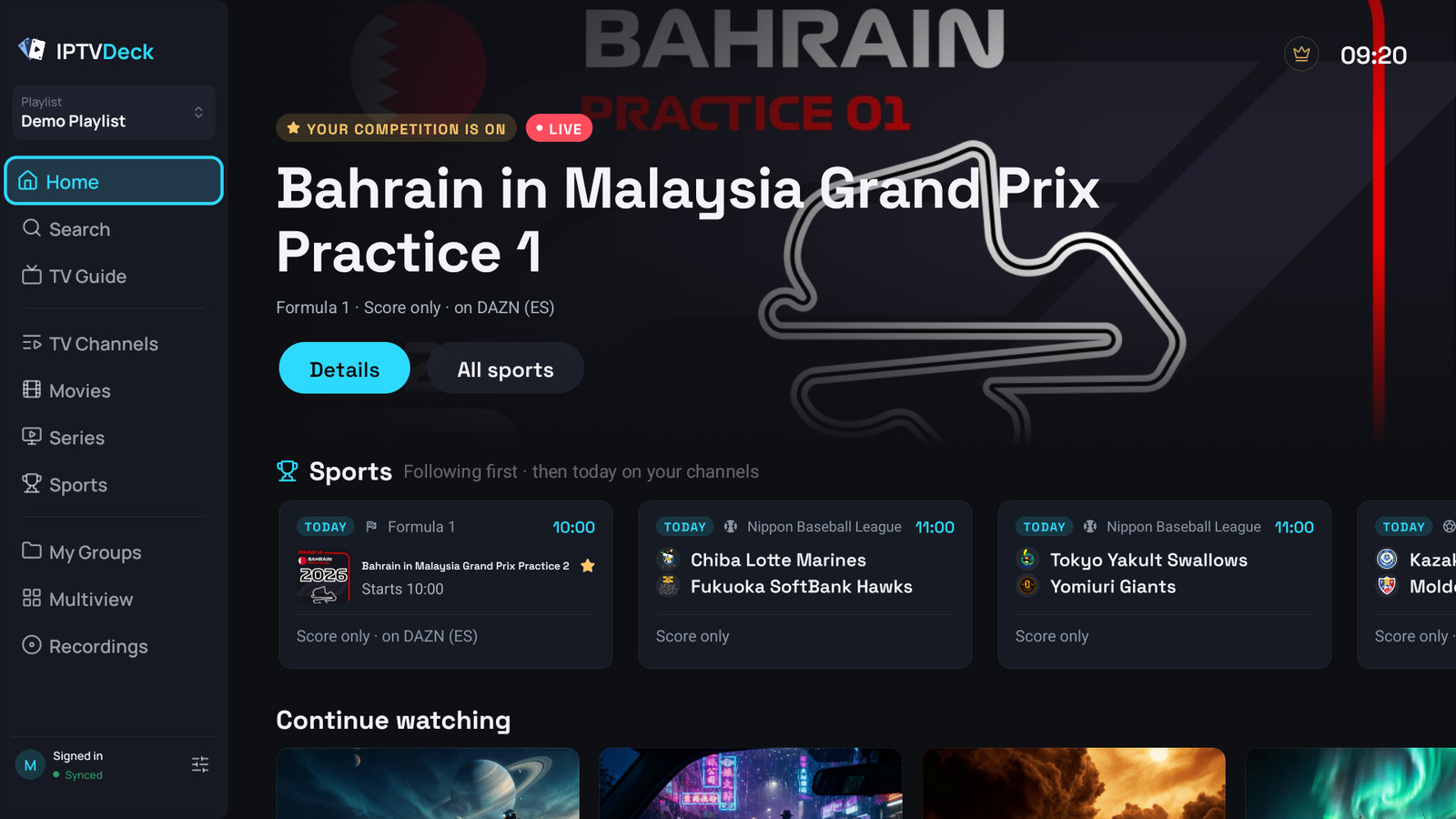
Sports on Home
Section titled “Sports on Home”The first time Home opens on a device, the app asks whether you want a Sports Home or a Regular one, see The home screen. Sports turns on the pinned match or the Sports hero, the Sports row (with Today when it was off) and sports mode in the player. Regular turns all of them off.
The same choices are in the settings afterwards, Settings → Appearance on a phone and Settings → Home on a television, Windows and the Mac:
| Setting | Options | What it does |
|---|---|---|
| Pin what I follow (phone, under Home screen) | On or off | On top of Home: the match you follow that is live, or else the next one, today or later, and it says when |
| Sports hero (television) | Off or Following | Replaces the Home hero with what you follow: the match that is live, or else the next one you follow, today or later |
| Sports row | Off, Following or Today | A row of matches on Home: none, only what you follow, or everything today. It is also in the list of rows, so you can move or hide it like any other row |
They stay on the device, so a television can be all about sport while your phone is not. The pinned match and the Sports hero are also kept per profile on that device, so a kids profile can keep the usual Home.
The match at the top of Home and the Sports row show right away when you open the app, and catch up with the latest scores a moment later.
Kids profiles
Section titled “Kids profiles”- A kids profile uses Sports like any profile once the account is signed in and has the trial or Premium. Without them it asks the child to fetch a parent and shows no button.
- It follows its own teams and keeps its own hidden sports and leagues, pinned leagues and versions of channels.
- It cannot open Settings → Sports. Its Hide scores is set on the Sports page of the account panel, see Kids profiles.
- It is never asked the Sports or Regular question, and its Sports hero or pinned match is its own.
When something is missing
Section titled “When something is missing”- Scores are unavailable: the scores service did not answer. Try again asks again, and your channels still play: Live TV on a phone, Open TV Guide on a television. At the top of Sports, Couldn’t update means the last refresh failed and what you see is from before.
- Nothing you follow is coming up: the service answered and nothing you follow plays soon. Listings usually appear one or two days ahead. Show all matches opens the day.
- An empty day says Try another day or another sport, with Back to today and Change sport.
- None on your channels, with My channels on: the day has matches, but none on your channels. Show all brings them back.
- Not on your channels on a match you know is on one of your channels: the guide of that channel is missing or does not name the match. Pick another channel… in the match centre fixes it for that match. Listings usually appear one or two days ahead.
- A channel you picked for a match on one playlist does not show while another playlist is active. Switch back and your pick comes back.
- That channel is no longer in your playlist: the channel you chose was removed from the playlist. Pick another one.
