
The settings map
The two shells group settings differently. Both hold the same things.
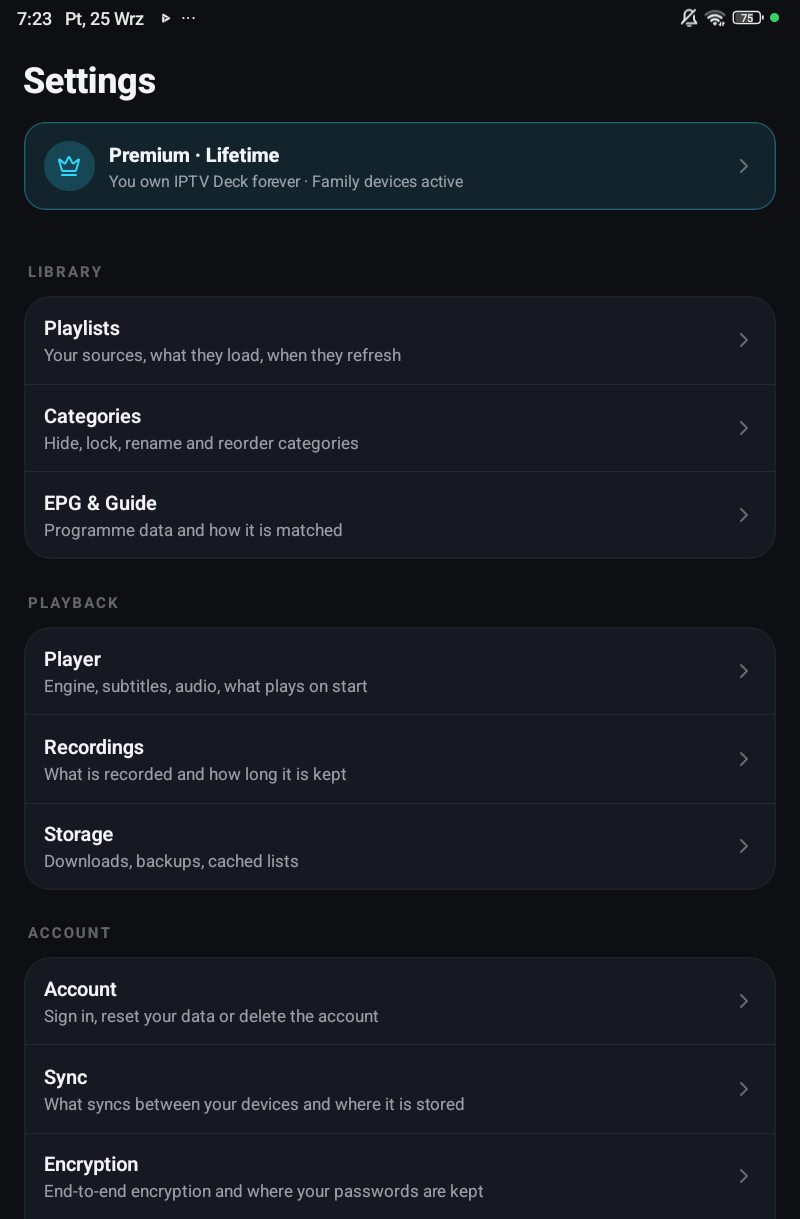
On a phone
Section titled “On a phone”| Group | Rows |
|---|---|
| Library | Playlists · Categories · EPG & Guide |
| Playback | Player · Recordings · Storage |
| Account | Account · Sync · Encryption · Devices · Profiles & PIN |
| Saved & scheduled | Reminders · Downloads · Recordings |
| Services | Integrations |
| System | Appearance · About & legal |
The longer screens are split into sections, each with its own heading. What you act on comes first, such as your playlists or your guide sources with Update all under them, and the rules for how they behave come after, under Settings.
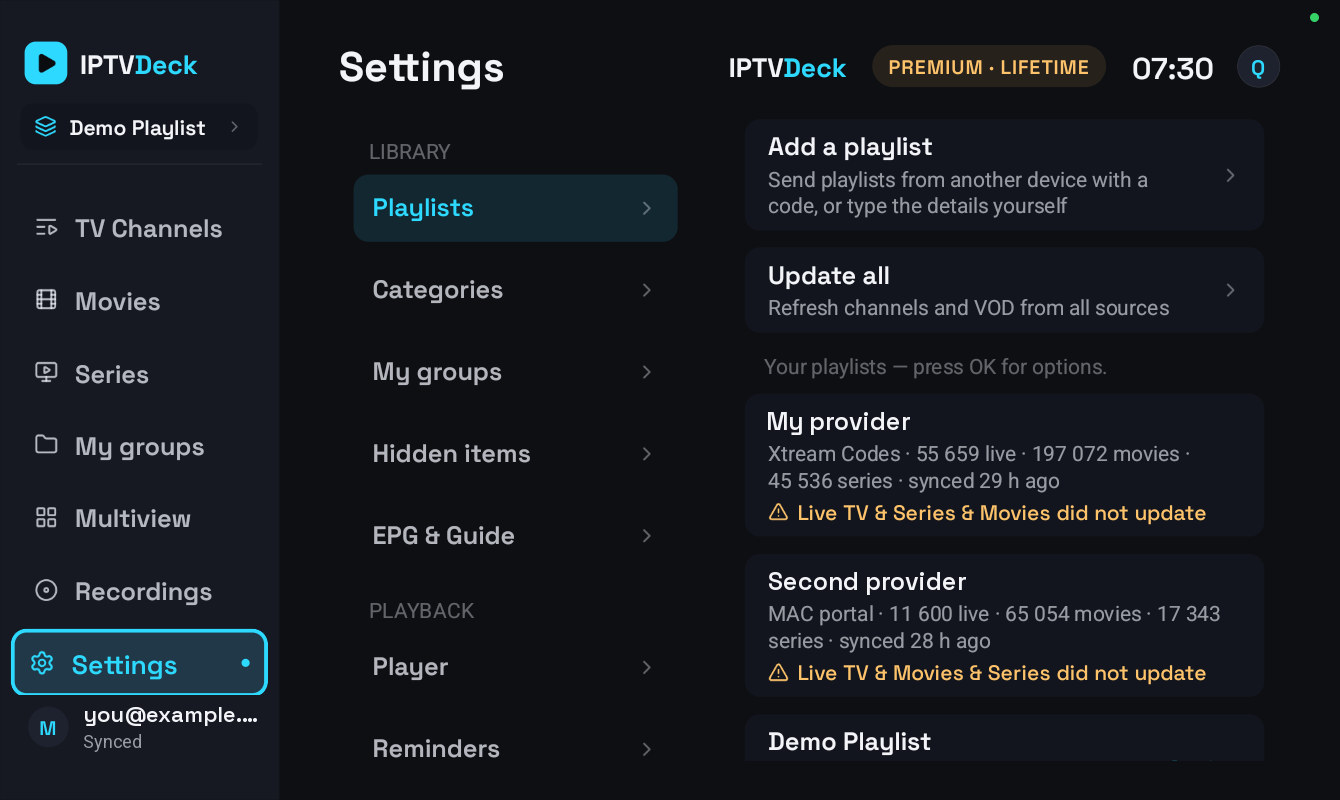
On a television
Section titled “On a television”| Group | Rows |
|---|---|
| Library | Playlists · Categories · My groups · Hidden items · EPG & Guide |
| Playback | Player · Reminders · Recordings · Downloads |
| Account | Subscription · Account · Sync · Devices · Profiles & PIN |
| Services | Integrations |
| System | Language · Layout · Theme · Interface size · Home · Start-up · Android home screen · Time format · Terms & Privacy · Licenses · About |
A few rows appear only where they mean something: Layout on a tablet, Start-up and Android home screen on Android TV, and Reminders, Recordings and Downloads where the device can do them. Windows and the Mac use this layout too.
Your plan is always in the top bar: Premium, Premium · Lifetime, or how long the trial has left. Selecting it opens Subscription when you have a plan, and the plans when you do not.
Appearance
Section titled “Appearance”Theme, app language, clock format and which rows appear on the home screen. On a tablet this is also where the Layout switch lives, between the phone layout and the television one. On a television the same things are separate rows under System, and the home screen rows are under Home.
Changing the app language reloads the interface. In a right-to-left language. Arabic and Urdu, the whole layout mirrors, which is why it needs a reload rather than a re-render; that only ever happens when you pick the language on this device, never because another device changed it.
Which settings stay on the device
Section titled “Which settings stay on the device”Roughly: anything about this screen, this decoder or this disk.
Player engine, buffer size, hardware decoding, subtitle size and colour, brightness, saved zoom and aspect, how long the guide is kept, the download and recording folders, recording padding, the tablet layout, and which playlists are currently open.
Everything else follows your account, unless you switch it off under What gets synced. The full split is on Your account and sync.
About & legal
Section titled “About & legal”Version, the active update id, terms, privacy, open-source licences, and Report a bug, which opens an email with the app’s diagnostics already filled in. That id is how you tell somebody exactly what you are running, see Updates.