
Player settings
Settings → Player on a phone, Settings → Playback → Player on a television.
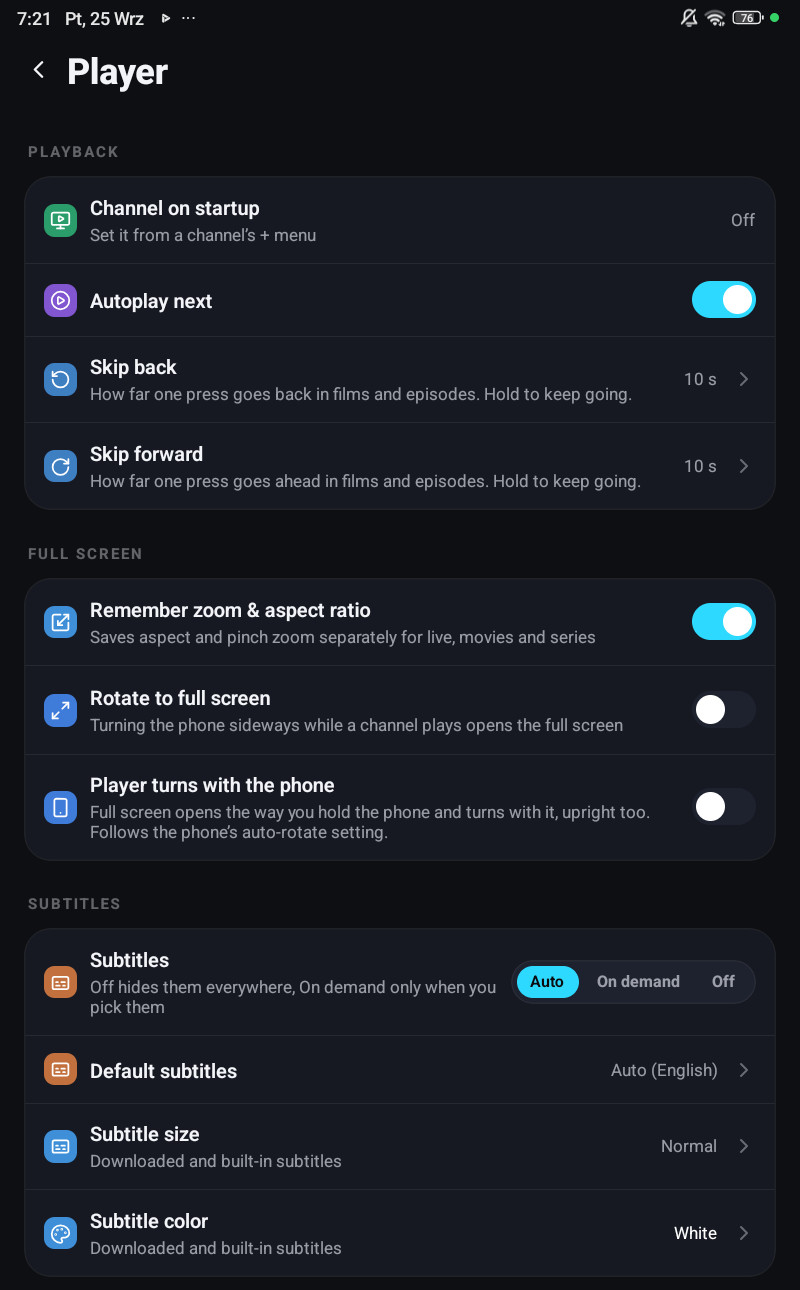
The rows are grouped by what they are for.
Playback
| Row | What it does |
|---|---|
| Channel on startup | Opens a chosen channel when the app has been closed for a while. Set it from a channel’s + menu, not from here |
| Autoplay next | Starts the next episode when one finishes |
| Skip back | How far one press goes back in films and episodes. Hold to keep going |
| Skip forward | How far one press goes ahead in films and episodes. Hold to keep going |
Full screen, on a phone
| Row | What it does |
|---|---|
| Remember zoom & aspect ratio | Saves aspect and pinch zoom separately for live, movies and series |
| Rotate to full screen | Turning the phone sideways while a channel plays opens the full screen |
| Player turns with the phone | Full screen opens the way you hold the phone and turns with it, upright too. Follows the phone’s auto-rotate setting |
Subtitles
| Row | What it does |
|---|---|
| Subtitles | Auto, On demand or Off |
| Default subtitles | The language the player looks for on its own |
| Subtitle size | For downloaded and built-in subtitles |
| Subtitle colour | Same |
Audio
| Row | What it does |
|---|---|
| Default audio | The audio language the player picks when it exists |
| Stereo or surround | When a film has the same language in stereo and in surround, which one to start with. Android only |
| Background audio | Keeps the sound playing when you leave the app or turn the screen off. Phones and tablets |
Engine
| Row | What it does |
|---|---|
| Player engine | Auto, Native, or the second engine under its own name: VLC on Android and Apple, mpv on Windows. Auto starts Native and switches only when needed; a fixed choice never falls back |
| Engine for live channels | Same as above, Native, or the second engine. Lets channels use a different player from films |
| Deinterlacing | Smooths the comb-shaped edges older channels show on movement. VLC engine only |
| Hardware decoding | Applies to the VLC engine. Turn it off if the picture is torn or green |
Buffering, on Android
| Row | What it does |
|---|---|
| Buffer size | Short for live, long for films. Auto is right on most connections |
| Fetch films over several connections | Fetches the start of a film over several connections at once. Off by default |
| Low latency live | Plays closer to the live edge. Off by default |
On a television the groups are Playback, Guide, Subtitles, Audio, Engine and Buffering. Remember zoom & aspect ratio sits under Playback there, and Guide holds Sound in the guide preview and Guide preview follows the cursor. A few rows have longer names: Autoplay next episode, Preferred subtitles, Preferred audio. Show FPS counter is under Engine.
Player engine
Section titled “Player engine”Leave it on Auto unless you have a reason.
Fixing it to the second engine is the reason the option exists: a stream that only VLC can open plays immediately rather than after the native engine has tried and failed. The cost is that VLC buffers before it shows anything, so starts are slower, and it uses more power.
On Windows that second engine is mpv and the row says so. On macOS there is no second engine, so the row offers one option and nothing to choose.
Fixing it to Native stops the app switching away from a stream that is merely struggling.
Engine for live channels
Section titled “Engine for live channels”Leave it on Same as above unless live and films disagree. It exists because the second engine can rescue a channel your box cannot decode, while seeking through a film is faster on the first one, and before this row you had to pick one for both.
Low latency live
Section titled “Low latency live”Off by default. It plays as close to the live edge as the stream allows, which matters most on channels that arrive in pieces; where a channel already arrives as one continuous stream you are near the edge anyway. A weak connection will stutter more with it on, and a long pause no longer rejoins live on its own.
It does not change your buffer size on the native engine. On VLC the buffer and the delay are one control inside the engine, so there it does shorten the buffer.
Deinterlacing
Section titled “Deinterlacing”Older channels broadcast each picture as two half-pictures, which shows as comb-shaped edges on movement. This smooths them. It works on the VLC engine only, and the three steps cost progressively more, so a weaker box can take the cheapest one.
Fetch films over several connections
Section titled “Fetch films over several connections”Android only, off by default. When on, the start of a film is fetched over several connections at once, which helps where a provider caps the speed of a single connection. Leave it off if films pause and start over every few minutes with it on, or stutter on a weak Wi-Fi, where the connections compete with each other.
Buffer size
Section titled “Buffer size”Only on Android, and only for the native engine. It stays on the device.
Auto is 60 seconds of buffer with a 180-second target for films, and a short one for live. The larger profiles help on a connection that stalls in bursts; they do nothing for a connection that is simply slow, and they never make a stream start faster.
Hardware decoding
Section titled “Hardware decoding”This row is about the VLC engine only. The native engine manages its own decoders, and the desktop player has no equivalent knob.
Turn it off when VLC gives you a torn, green or blocky picture, some cheap boxes have broken hardware decoders for particular codecs. It costs power and it can drop frames on 4K, so turn it back on when you move to another device.
It stays on the device on purpose: a broken decoder on one television has nothing to do with your phone.
Rotate to full screen
Section titled “Rotate to full screen”Off by default. When on, turning the phone sideways during a live channel opens the full-screen player, and only opens it. Turning back to portrait never closes it, and the phone has to be seen upright for about half a second first, so closing the player in landscape does not bounce you straight back in.
Player turns with the phone
Section titled “Player turns with the phone”Off by default, and nothing changes until you turn it on: the full-screen player on a phone stays sideways, as it always has. With it on, a film or a channel opens the way you are holding the phone, turns with it to either side, and goes back upright when you turn the phone back, still playing. You close it the same way as before. Multiview stays sideways.
It follows the phone’s auto-rotate setting, so with auto-rotate off the player stays upright.
Together with Rotate to full screen, a live channel works in both directions: turn the phone sideways and the full screen opens, turn it back and the player goes upright instead of staying sideways. Rotate to full screen notices the turn by itself, so with auto-rotate off it still opens the full screen, only upright.