
Remote and keyboard keys
On a television nearly everything hangs off two keys. If you are hunting for an action, hold OK first.
Everywhere in the app
Section titled “Everywhere in the app”| Key | What it does |
|---|---|
| Arrows | Move |
| OK | Open or play what is focused |
| Hold OK, or INFO | Options for what is focused, favourite, group, rename, versions, record, remind |
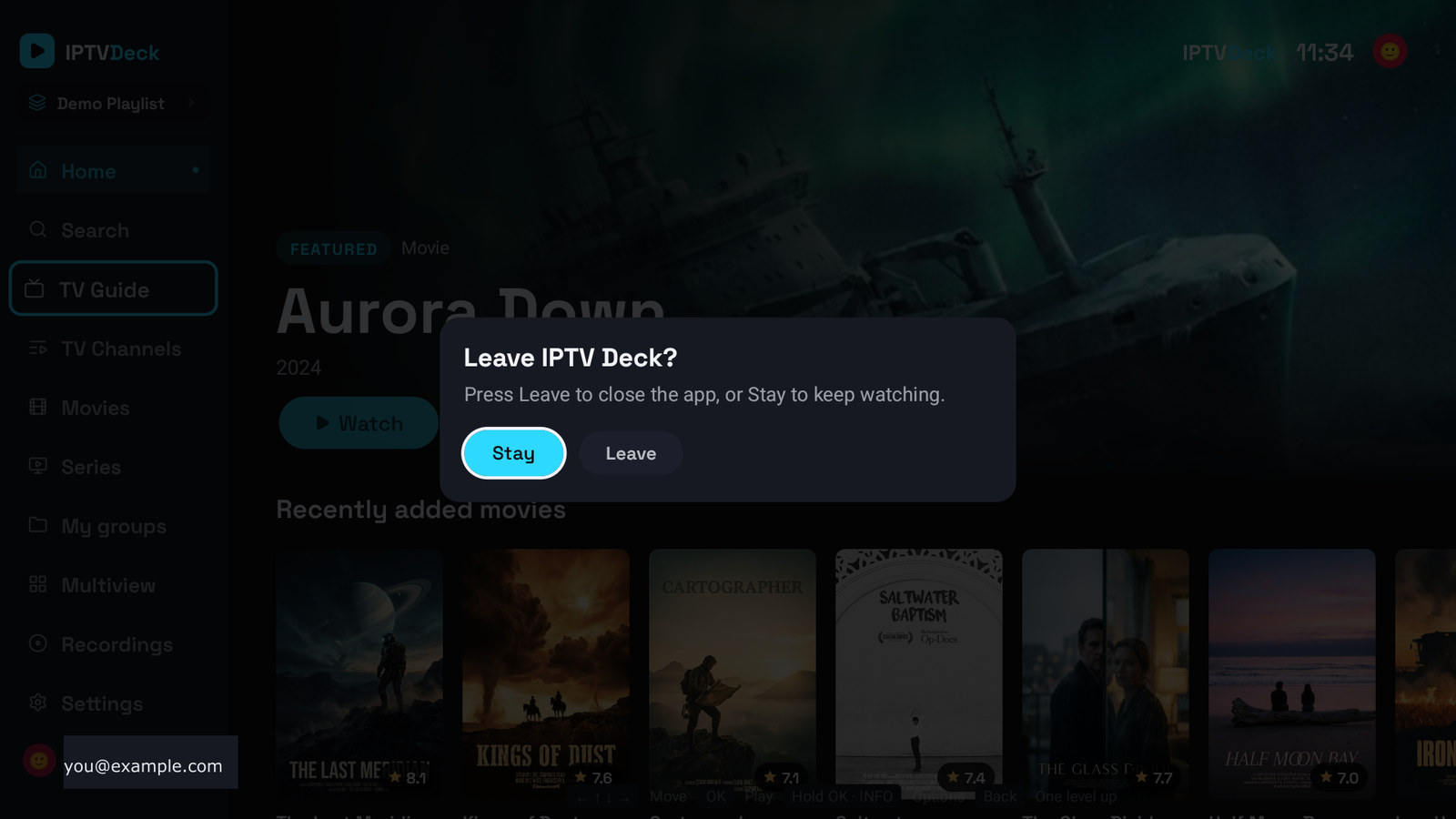
| Back | One level up. From the first column it goes to the nav rail; from there it offers to leave |
| Left from the first column | The nav rail |
The bar at the bottom of the screen always spells out what OK and Back will do on the thing under the cursor. It changes with the context, and it is the fastest way to learn the app.
In the player
Section titled “In the player”| Key | What it does |
|---|---|
| OK | Show the controls |
| Up / Down | Previous and next channel (live) |
| Left / Right | Seek (anything with a length) |
| Hold Left / Right | Switch to another version of this channel |
| Digits | Type a channel number and it jumps there |
| Play / Pause | Exactly that |
| Channel + / − | Next and previous channel |
| Back | Close the player |
Colour keys
Section titled “Colour keys”Only Android TV and Fire TV remotes have them, and only there does the app use one:
- Yellow, switch between the last two live channels you watched. Films never enter that history.
Chromecast with Google TV, Fire TV Sticks and NVIDIA Shield remotes mostly have no colour keys at all; the same action is in the player’s options panel.
On Windows and macOS
Section titled “On Windows and macOS”The television layout, driven by a pointer:
- Click anywhere OK would act.
- Move the mouse over the player to reveal the controls.
- Drag a list sideways to scroll it; a drag that actually scrolled does not also click.
- Arrow keys and Enter work exactly like a remote, if you prefer.
On a tablet in the television layout
Section titled “On a tablet in the television layout”A tablet running the television layout hides the phone’s navigation bar, so it gets a visible back button in the corner of every pushed screen, plus a back swipe from the left edge on iPad. Tapping a tile never moves the focus ring the way a remote does. That is deliberate, because a finger has no focus.