
Multiview
Several live channels on one screen, on the phone and on the television.
Filling it
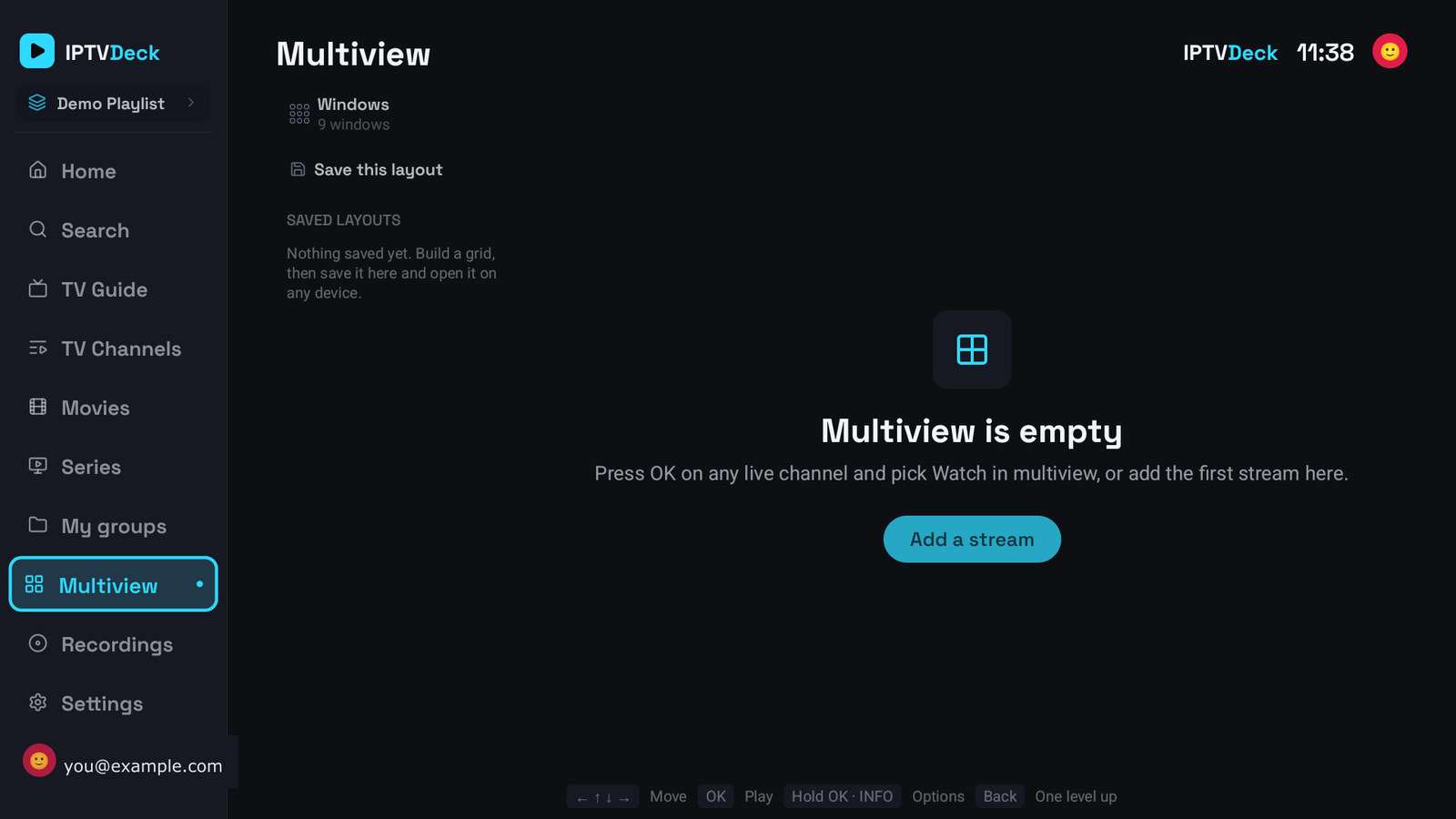
Section titled “Filling it”- From a channel: press OK (or hold it) on any live channel and pick Watch in multiview.
- From the multiview screen: Add a stream, then pick which channel lands in which cell.
Windows sets how many cells there are, up to nine. One cell can be blown up to full screen and brought back.
Saved layouts
Section titled “Saved layouts”Save this layout keeps the grid, which channels, in which cells, under a name. Saved layouts follow your account, so a grid built on the phone opens on the television.
Why a cell sometimes refuses
Section titled “Why a cell sometimes refuses”Two limits, and they are different:
Your provider. Most accounts allow a fixed number of simultaneous connections, often one. The second cell then gets an HTTP 403 or 509 and says so. Nothing in the app can work around that: it is your subscription’s limit, and the only cure is a plan that allows more connections at once.
Your television. A television decodes only so many videos at once, and a cheap streaming stick often manages a single 4K one. Multiview never works around that by decoding in software, because that drops the whole device to a few frames per second and takes the rest of the app with it. A cell with no room left says This TV can’t decode another video here, and does not retry on its own.
That is a deliberate trade: a refused cell is better than a television that stops answering the remote.
What it costs
Section titled “What it costs”A cell you cannot see is closed rather than paused, because a paused one would still hold its share of the television and of your provider. Leaving multiview therefore frees both at once.
Multiview is not available on the web build. It is on everything else, Apple TV included.