
Your account and sync
An account is free, and it carries three things: your trial and subscription, your data, and the devices you are signed in on.
You do not need one to try a playlist. Without one nothing syncs, and the trial cannot follow you to a second device.
How syncing works
Section titled “How syncing works”Not a manual refresh and not a poll: every signed-in device listens, and a change on one appears on the others within a second or two. Merging is field by field, so two devices can edit at the same time without either losing anything, a channel added to a group on the phone and one added on the television both survive.
Playback position is included, with a slower cadence, so resuming on another device lands on the right second.
What syncs and what does not
Section titled “What syncs and what does not”| Follows your account | Stays on this device |
|---|---|
| Playlists and their settings | Which playlists are currently open |
| Favourites, watchlist, history, playback position | The categories you chose to download |
| Groups and their order | Player engine, buffer size, hardware decoding |
| Profiles, PINs, locked categories, per-profile playlist access | Subtitle size and colour, brightness, saved zoom and aspect |
| Theme, app language, clock format | How long the guide is kept |
| Default subtitle and audio language, subtitle mode | Download and recording folders, recording padding |
| Guide sources, time offset, guide and playlist refresh rules | The tablet’s choice of layout |
| Multiview windows and saved layouts | The FPS overlay |
| Autoplay next, guide preview behaviour, related-language gate |
The right-hand column is deliberate, not an oversight. A decoder that misbehaves on one box has nothing to do with your phone; a folder on a USB stick means nothing anywhere else; and a television should not change what it is showing because somebody picked a different playlist on a phone in another room.
Device-only things can still be sent on purpose, see Moving to another device.
Choosing what syncs
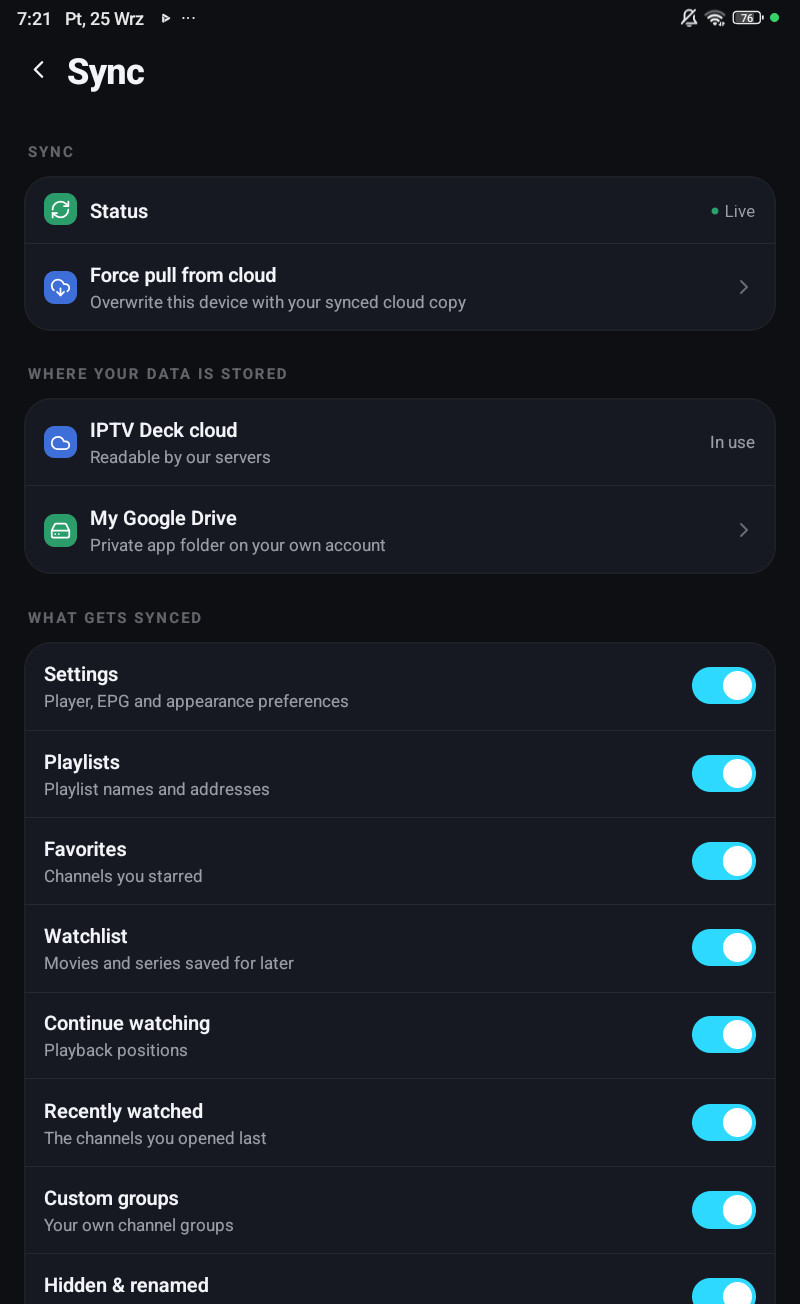
Section titled “Choosing what syncs”Settings → Sync → What gets synced lists each kind of data with its own switch: settings, playlists, favourites, watchlist, continue watching, recently watched, your groups, hidden and renamed items, and the rest. The same list is under Settings → Sync on a television and on a computer.
Turning one off is not a pause. The app says what happens: Turning an item off deletes it from the cloud on the next sync. The copy on this device is never touched. On a television it asks first.
The choice is saved even when you are signed out, and applies as soon as you sign in.
The controls
Section titled “The controls”Account and sync are two separate screens.
Your account
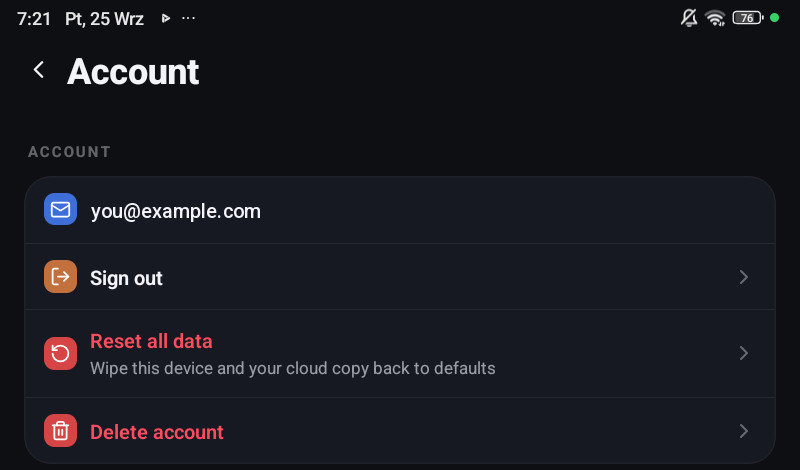
Section titled “Your account”Settings → Account:
| What it does | |
|---|---|
| Sign out | Leaves the data on the device, stops syncing, and stops sending provider passwords anywhere |
| Reset all data | Wipe this device and your cloud copy back to defaults |
| Delete account | Removes the account and its data |
Reset all data is not a local reset. It clears the cloud copy too, and every other device will follow. Close and reopen the app afterwards to finish.
On a television Settings → Account shows who is signed in, Sign out, and the Keep my passwords in my account switch.
Settings → Sync:
| What it does | |
|---|---|
| Status | Whether sync is live, busy or failing, and why |
| Force pull from cloud | Overwrite this device with your synced copy. For when a device has clearly drifted |
| Where your data is stored | The IPTV Deck cloud, or your own Google Drive, see below |
| What gets synced | The switches above |
On a television the same section has Sync now, and Unlock sync when your data is encrypted and this television does not have the key yet.
Your own storage instead
Section titled “Your own storage instead”On Android, sync can point at your own Google Drive instead of our backend (Settings → Sync → Where your data is stored). It asks you to turn on end-to-end encryption first, because readable data on your Drive would be worse than keeping it with us. The whole thing can also be exported to a single encrypted file you keep yourself (Settings → Storage → Back up data).
The catalogue never leaves the device in any case: channels, films and the guide are stored on the device itself, and only your small user data is ever uploaded.
Encryption
Section titled “Encryption”Everything above is uploaded encrypted on the device when end-to-end encryption is on, which is its own topic: Encryption and the recovery code.