
Using it on a television
Android TV, Fire TV, Apple TV, LG and Samsung TVs, and the apps for Windows and the Mac all use the television layout. So does a tablet switched to it, see On a tablet. Everything is reached with the arrows, OK, hold OK and Back. On a computer the mouse and the keyboard do the same, see On Windows and the Mac.
Every key of the remote, in the lists and in the player, is on Remote and keyboard keys. This page is about finding your way.
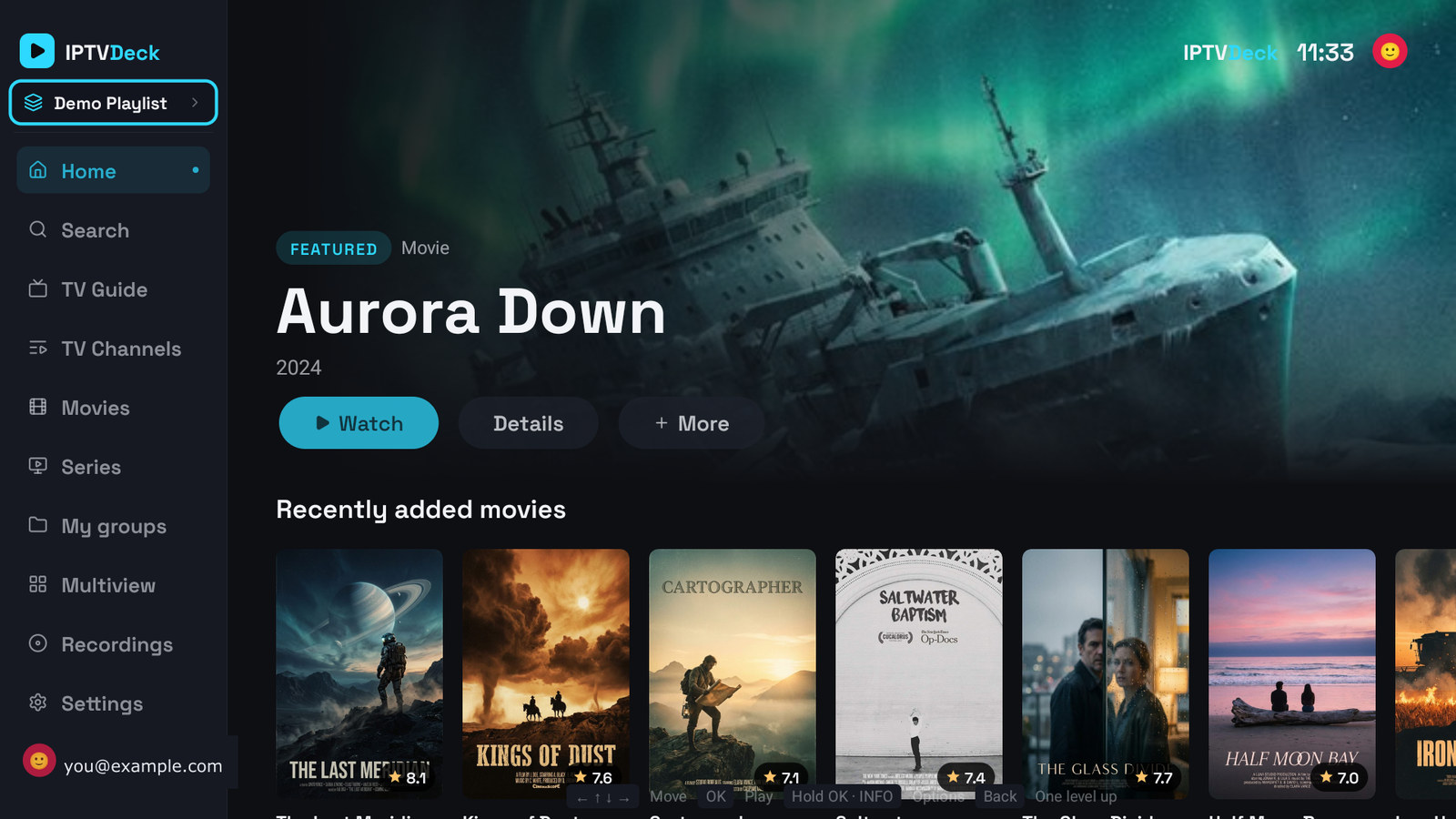
The side menu
Section titled “The side menu”The side menu runs down the left edge of every screen, in three groups:
| Group | Items |
|---|---|
| Find something | Home, Search, TV Guide |
| Your playlist | TV Channels, Movies, Series, Sports |
| Your own | My Groups, Multiview, Recordings, Downloads |
Not every item is always there:
- Multiview, Recordings and Downloads are not on LG and Samsung TVs.
- Downloads appears once something is downloaded or a network folder is set up.
- Movies and Series leave the menu by themselves while none of your open playlists has films or series.
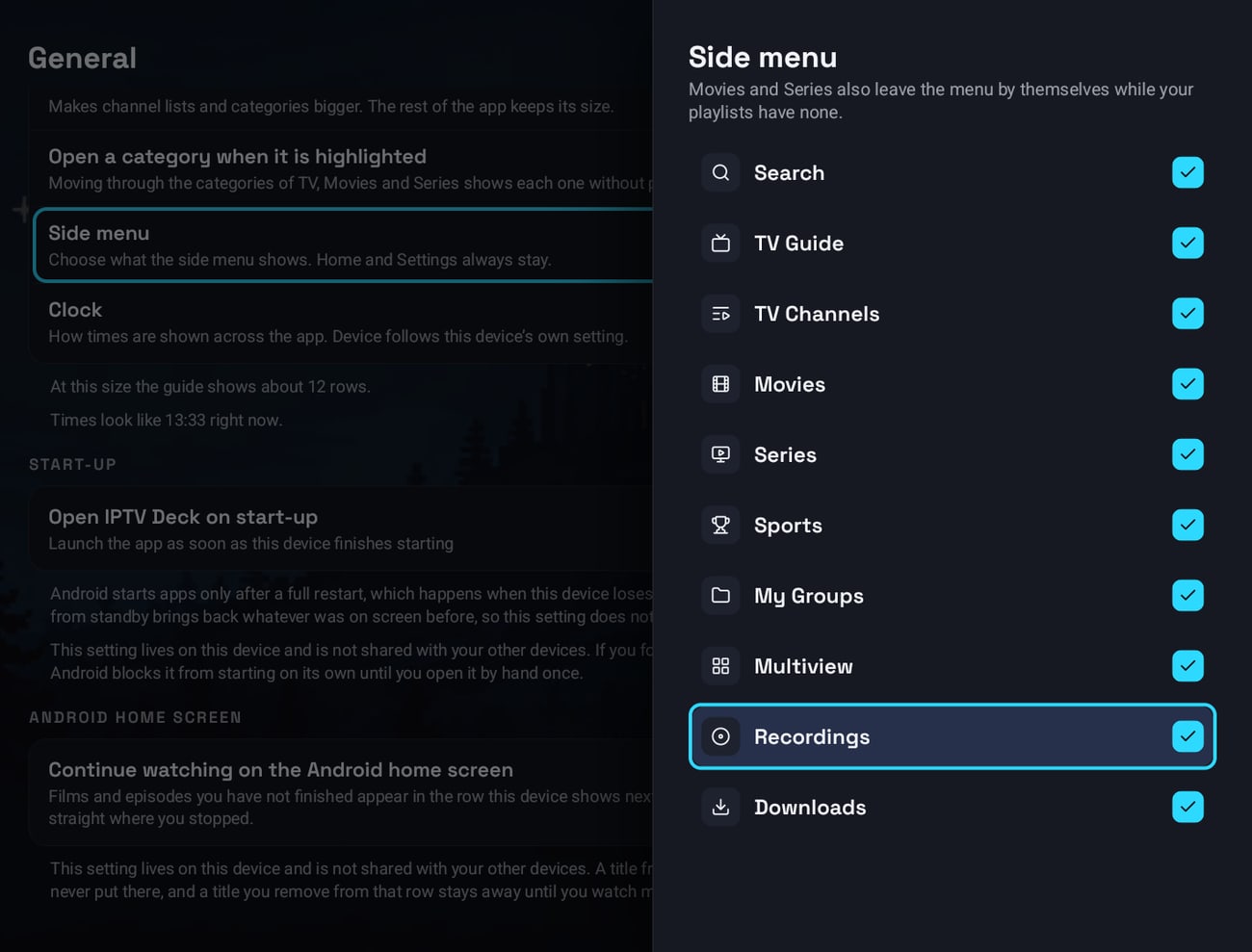
- Settings → General → Side menu hides the items you do not use: untick them. Home and Settings always stay.
Top and bottom of the menu
Section titled “Top and bottom of the menu”At the top sit the IPTV Deck logo and the playlist card, with the name of the playlist you are watching, or how many playlists are open, such as 2 playlists. OK on the card opens the playlist switcher, see Several playlists. The card is not there before you add a playlist, nor in a Kids profile.
At the bottom sit your account and the Settings button:
- Your account shows your email and a line such as Synced, Syncing… or Sync failed. Before you sign in it reads Sign in and Bring your playlists here.
- OK on your account opens Who is watching? when you have several profiles, the Account page of Settings when you have one, and the sign-in screen when you are not signed in.
- Settings carries a small dot when an app update is waiting.
The top bar
Section titled “The top bar”The top right corner of most screens holds your plan, the clock and, with more than one profile, the picture of the profile you are in. The plan is a gold crown with Premium, TRIAL · N DAYS LEFT during the trial and TRIAL ENDED after it. Selecting the crown opens Subscription, and selecting the trial badge opens the plans. While a recording runs or your account syncs, a small sign for it shows there too.
Folded and open
Section titled “Folded and open”The menu folds to its icons as soon as you move into a screen, on every screen, so the screen gets the whole width. It stays folded when you come back to it, and opens with its names only when you ask:
- Left from the first column of a screen moves onto the folded menu.
- Left again, or Back, opens it with its names. The screen slides aside to make room.
- Up and Down move through it. Down from the last item reaches your account and Settings at the bottom, Up from the first item the playlist card, and Up from Settings the last item.
- OK on an item opens that screen, and the selection stays in the menu, so you can look through several screens in a row. OK on the item of the screen you are already on moves into it.
- Right goes into the screen and folds the menu again.
Menu size in Settings → General makes the menu bigger, at 100%, 110%, 125% or 150%, and leaves the rest of the app as it is. With a large Interface size the menu grows only as far as the screen has room for, and a note under the settings says how far.
On Windows and the Mac the menu also opens while the mouse is over it, and a pin next to the logo keeps it open beside every screen, also after a restart. Click the pin again to let it fold. On a tablet the menu stays open with its names on Home, Search, Recordings and Downloads, and is narrow on the other screens.
Moving with the remote
Section titled “Moving with the remote”| Key | What it does |
|---|---|
| Arrows | Move the selection |
| OK | Open or play what is selected |
| Hold OK | The options of what is selected, in a sheet from the right, see Hold OK |
| Back | One step back, see Back, step by step |
On each remote:
- Android TV and Fire TV: INFO, or the menu key ☰ where the remote has one, opens the same sheet as holding OK.
- Apple TV: the clickpad or the touch surface of the Siri Remote moves, a click is OK and a long click is hold OK. Back, or Menu on older remotes, is Back.
- LG TVs: the Magic Remote pointer works too. Point at something to select it and press OK. On a screen whose categories are hidden, pointing at the left edge of the list shows them.
- Samsung TVs: the arrows, OK and Return.
Each time you enter a screen a row of key hints shows at the bottom for a few seconds: ← ↑ ↓ → Move, OK Play, Hold OK · INFO Options and Back One level up. In the TV Guide, while a channel plays, Android TV and Fire TV add Hold Back Playing channel. A selected poster also carries a small Hold OK · Actions label.
Which actions the colour keys, Channel +/−, the guide key and the others do can be changed in Settings → Player → Remote buttons on Android TV, Fire TV, LG and Samsung TVs, also a button that opens your playlists from any screen, see Remote and keyboard keys.
Back, step by step
Section titled “Back, step by step”Back always goes one step back towards Home, and on Home it asks before it closes the app.
| You are on | Back |
|---|---|
| An open sheet or dialog | Closes it |
| A channel number you are typing | Cancels it |
| The posters of Movies, Series or My Groups | The category column |
| The TV Guide | Back to now, if you moved away in time, then the category column |
| The channel list of TV Channels | The category column, when Hide categories while browsing has hidden it; otherwise the side menu |
| A page of Settings | The list of sections |
| The results of Search | The search field |
| The first column of any screen | The side menu, folded |
| The folded side menu | Opens it with its names |
| The open side menu, on any screen but Home | Home |
| The open side menu on Home | Leave IPTV Deck? |
| A film, series, actor or group page | The screen you opened it from, on the tile you opened |
| A page opened with Show all from Home | Home |
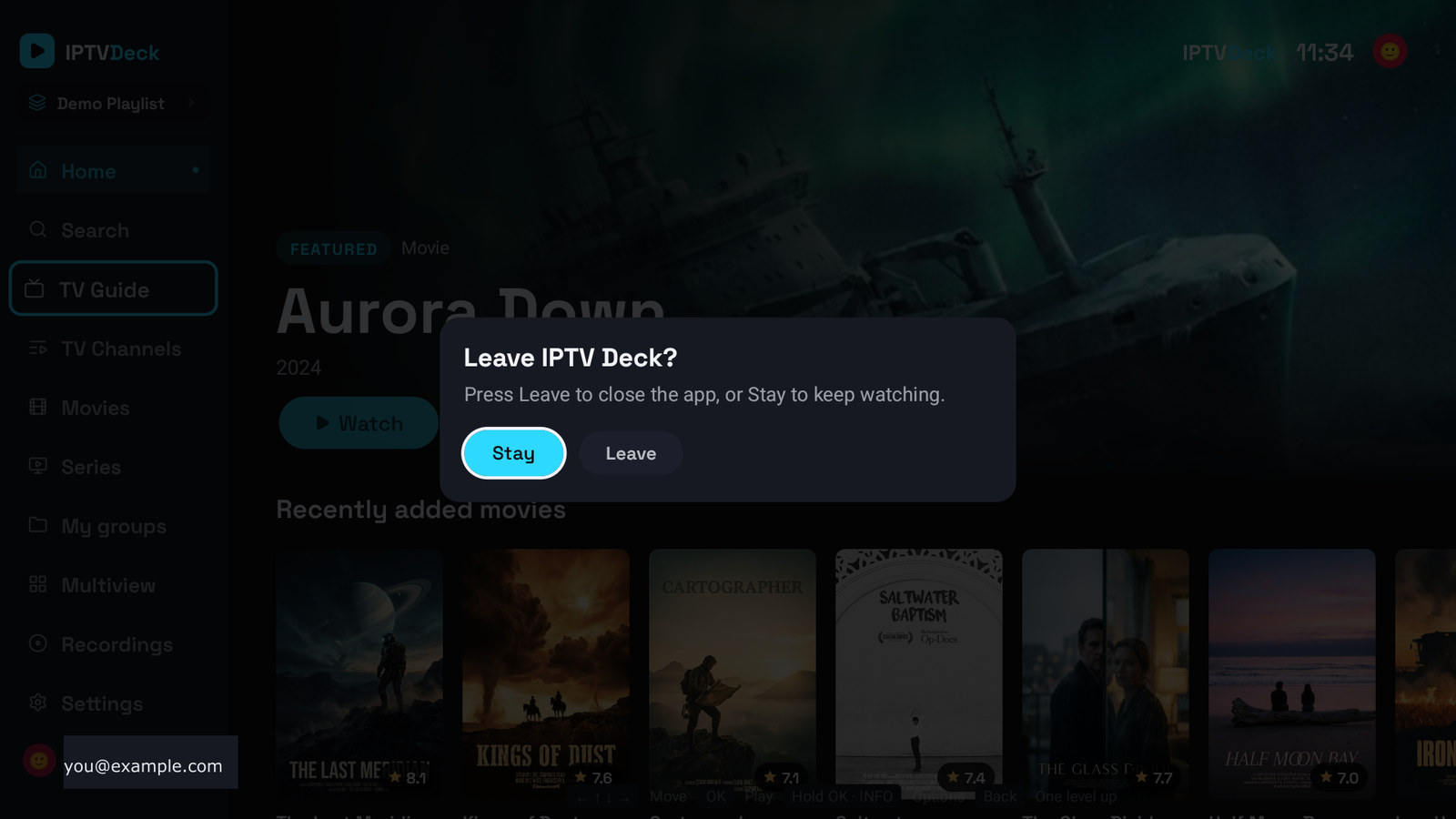
Leave IPTV Deck? offers Stay, which has the focus, and Leave, which closes the app. Back in the dialog is the same as Stay. The dialog is there on Android TV, Fire TV, LG and Samsung TVs, Windows and the Mac.
Apple TV has no leave dialog. There Back on Home first moves to the side menu, then opens it, and once the menu is open the next press goes to the Apple TV Home screen, as in every app.
When the app is about to start the channel you set to play on start-up, Back stops it and you stay on Home, see What “channel on startup” does.
Back in the player, and holding Back on Android TV and Fire TV, are under The player and the side menu.
Hold OK and the side sheets
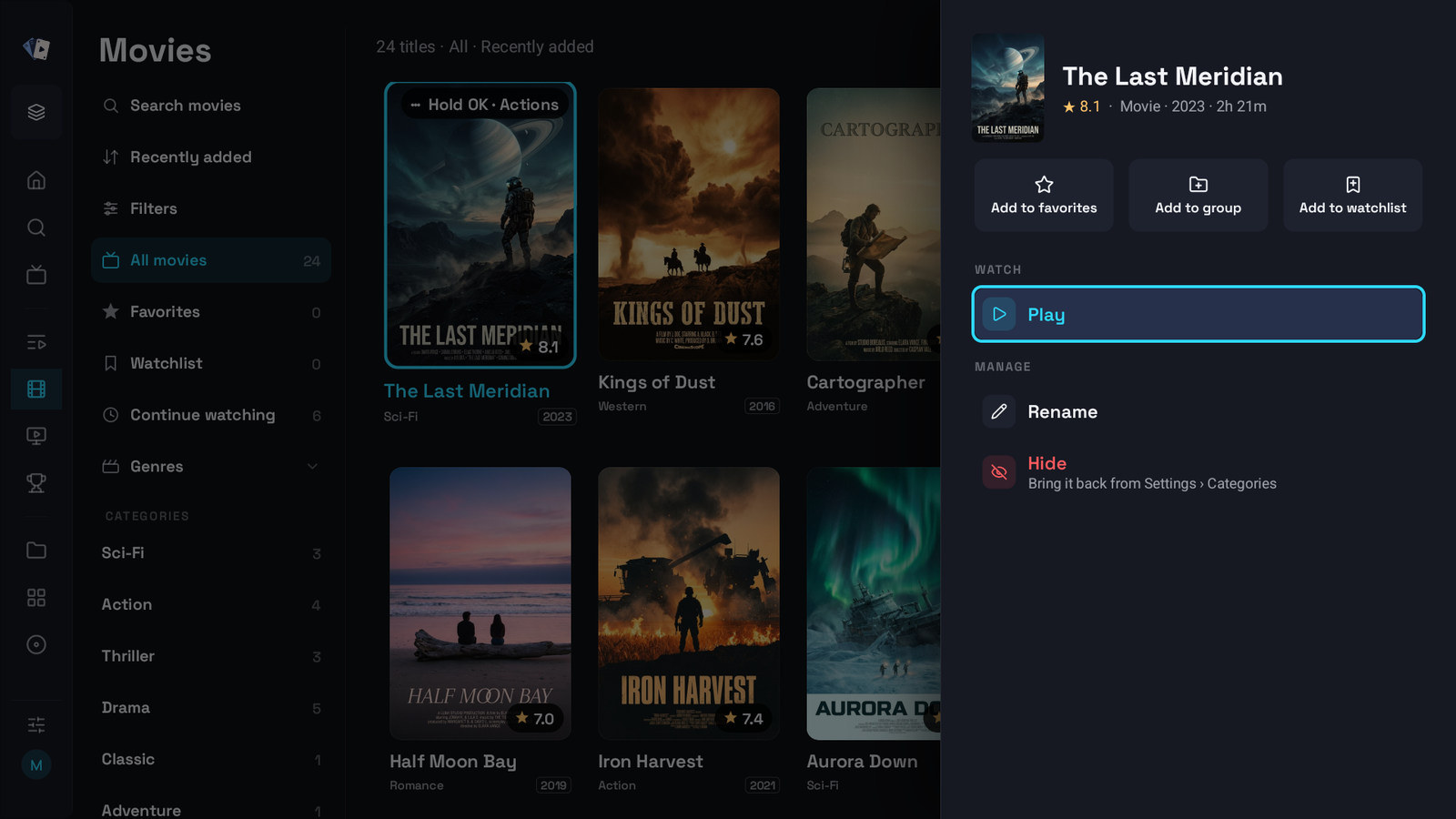
Section titled “Hold OK and the side sheets”OK opens or plays what is selected. Hold OK for half a second opens a sheet from the right with everything you can do with it. If you are hunting for an action, hold OK first. It works on channels, programmes in the guide, posters, Home tiles and categories.
The sheet of a channel, a film or a series starts with the quick actions: Add to favorites, Add to group and, for a film or a series, Add to watchlist. Once added they read In favorites, In 1 group or In 3 groups, and In watchlist. Selecting favourites or the watchlist again takes the item out; the group button opens the list of your groups. Under them come the actions of that item, such as versions, recording, reminders, rename or hide.
Back closes the sheet and puts the selection back where it was. A click or a tap outside the sheet closes it too.
Screens with a category column
Section titled “Screens with a category column”TV Channels, the TV Guide, Movies, Series and My Groups share one layout: the name of the screen above a column on the left, and the list, the guide or the posters on the right. Multiview and Settings have the same column on the left, with their own lists in it.
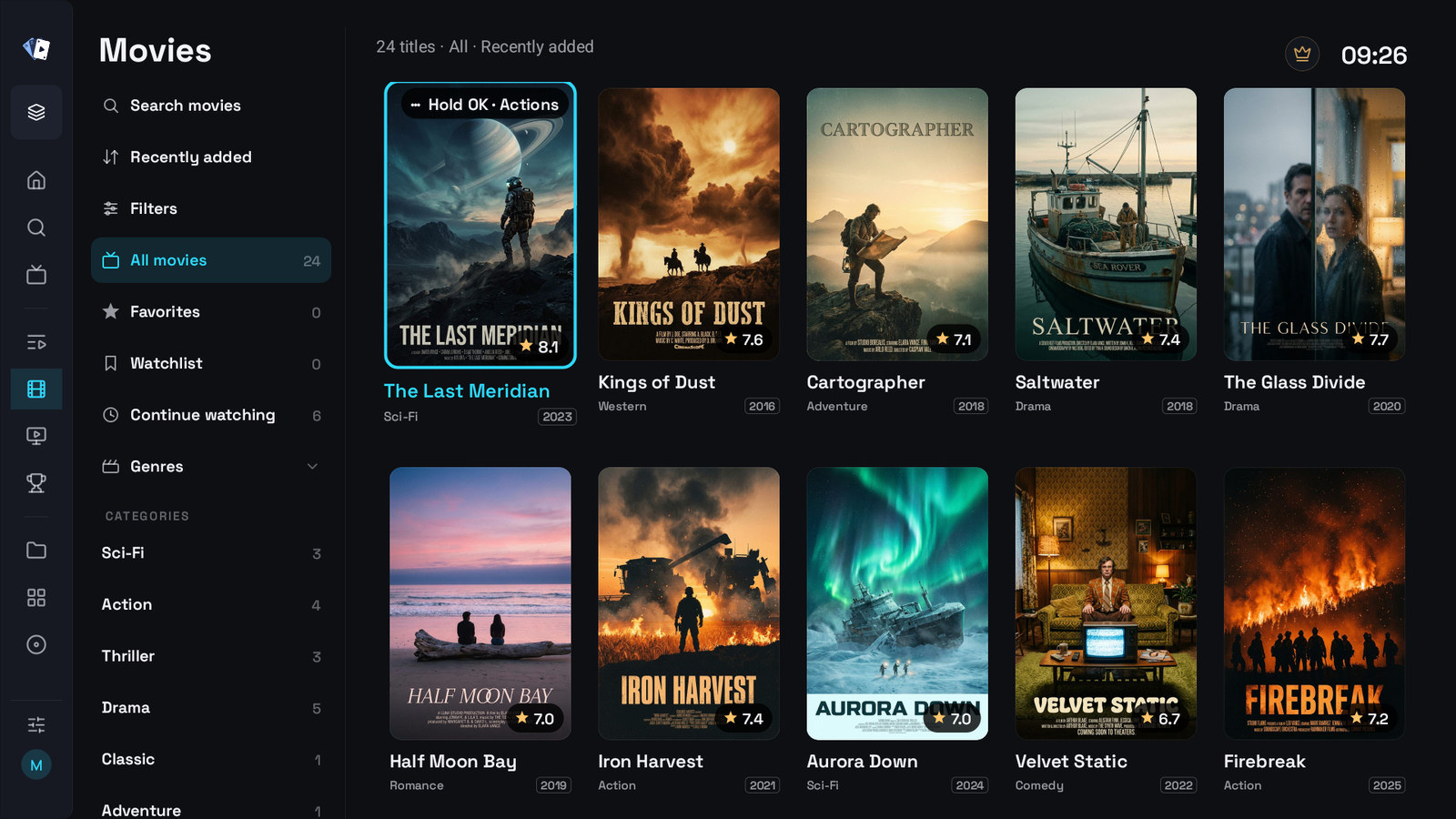
- Left from the first poster, channel or programme goes to the column, and Left from the column to the side menu. Right from the column goes back to where you were in the list.
- OK on a category shows it. With Open a category when it is highlighted on, in Settings → General, a category shows as soon as you move onto it. It is off unless you turn it on.
- The column goes round: Down on the last category goes to the first category, and Up on the top row goes to the last category. Holding the button stops at the end of the list instead.
- With several playlists open, each playlist has its own Categories · playlist name row. OK on it folds that playlist’s categories away, and OK again opens them. This device remembers which ones you folded. Pinned categories stand above all of them.
- Hold OK on a category opens its options, see Categories on a television.
The column hides while you browse
Section titled “The column hides while you browse”On a television the column slides away when you move into the list, so channels, the guide and posters get the whole width. Left from the first column, or Back, slides it back in and pushes the list aside. This works in TV Channels, the TV Guide, Movies, Series and My Groups.
| Setting, in Settings → General | What it does |
|---|---|
| Hide categories while browsing | The column hides when you move into the list. On unless you turn it off. Off, the column stays next to the list all the time |
| Category column | Normal, Wide or Extra wide: more room for long names in the column of TV Channels, the TV Guide, Movies, Series, My Groups, Multiview and Settings. The column never takes more than about a third of the screen |
| Channel column in TV Guide | Normal, Wide or Extra wide: more room for channel names in the guide. A wider column shows less of the timeline at once |
| List size | 100%, 110%, 125% or 150%: makes the channel lists and the category lists bigger, and leaves Home and the rest as they are |
On Windows and the Mac the column always stays next to the list, and Hide categories while browsing is not offered.
TV Channels
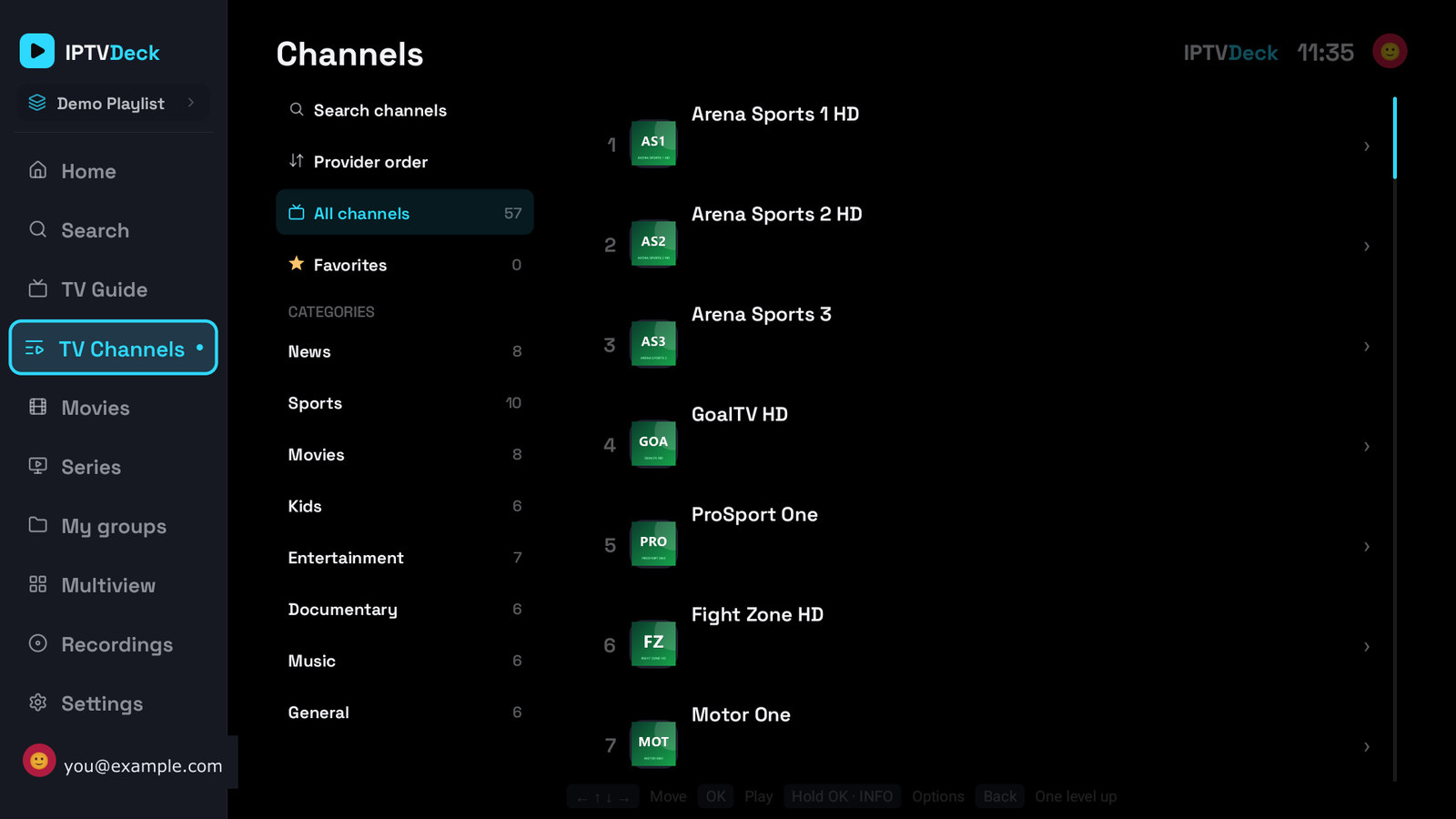
Section titled “TV Channels”The column of TV Channels starts with rows of its own:
- Search channels, which shows what you searched for while a search is on.
- The sort in use, such as Provider order, Recently added or alphabetical, and My order in Favorites. OK on it changes it.
- Catch-up only, On or Off, when your playlist has channels that keep past programmes.
- Recent, the channels you watched last, once there are any.
Then All channels, Favorites, Catch-up, your pinned categories, My groups and the categories of your provider. TV Channels remembers the category, the sort, Catch-up only and Recent you chose, for each profile and each playlist, also after the app restarts. A search is not kept.
OK on a channel plays it in the preview behind the list, and OK on the channel that plays puts it full screen. More on the list itself: Live TV and Catch-up.
Scrolling TV Channels a page at a time
Section titled “Scrolling TV Channels a page at a time”Channel + and Channel −, Page Up and Page Down, or Rewind and Fast forward move the list one screen of channels at a time, and holding a channel button keeps going. The same works in the TV Guide and in the channel list over the picture, on Android TV, Fire TV, LG TVs, Windows and the Mac. See Remote and keyboard keys.
TV Guide
Section titled “TV Guide”The grid of programmes, with the same column on its left and the preview of the channel you are on at the top. Hold OK on a programme for reminders, recording and catch-up, and on a channel to rename it, hide it, pick another version or move it. Everything about it is on Reading the guide.
Where the selection lands
Section titled “Where the selection lands”- Right from the side menu goes back to where you were in that screen: the same poster, channel or row.
- Back from a film, series or actor page, or from the player, returns to the tile you opened it from, also in a row on Home or in Sports.
- After you pick another category, Right lands on the poster you had there last, not on the first one.
- In TV Channels, Down on the last channel goes to the first, and Up on the first goes to the last.
- These places are kept while the app is open. Switching profile or playlist starts every screen from the top again.
- When you come back to the app after the TV slept or you used another app, the selection returns to the part of the screen it was in. If it ever disappears, it comes back on the side menu within a second.
The player and the side menu
Section titled “The player and the side menu”OK shows the controls and Back hides them, then closes the player. The row of buttons holds Channels and Guide, which open the same TV Channels and TV Guide as the side menu, on the channel you watch, which keeps playing in the preview. Back or Left there goes to the categories and then to the side menu. On a live channel hold OK opens TV Channels the same way.
On Android TV and Fire TV, holding Back in TV Channels or the TV Guide puts the playing channel back to full screen, and over the channel list on the picture it closes the list.
Back from the player returns to in Settings → Player can send Back from a live channel to the TV Guide instead of where you came from. The buttons, Options and what each key does are on The player.
Settings
Section titled “Settings”Settings opens from the button at the bottom of the side menu. The sections are listed on the left in five groups, Library, Playback, Account, Services and System, and the chosen one opens on the right. Right or OK goes into a section, and Left or Back returns to the list of sections.
With Fold the groups of Settings on, in Settings → General, Settings opens with the groups closed, and OK on a group opens it. General itself is in the System group. Where everything is: Settings.
On Windows and the Mac
Section titled “On Windows and the Mac”The same layout, driven by the mouse and the keyboard:
- A click works where OK does, a right-click where hold OK does. Holding Enter is hold OK too.
- Moving the mouse does not move the selection; a click does.
- The side menu opens under the mouse, and its pin keeps it open.
- The category column always stays next to the list.
- Escape is Back. Backspace or X closes the player.
- The window can be any size: the layout reflows rather than shrinking the text.
- Lists you put in order, such as categories, groups and the Home rows, can be dragged with the mouse, see Groups and your own order.
More on Remote and keyboard keys.
On a tablet
Section titled “On a tablet”A tablet in the television layout works with a finger: a tap is OK, and a tap outside a sheet closes it. A few things differ from a television:
- The side menu does not fold and open with Left and Back. It is open with its names on Home, Search, Recordings and Downloads and narrow elsewhere.
- Back does not stop at the side menu: it goes straight to Home, and on Home an Android tablet asks Leave IPTV Deck?.
- Pages such as a film or the player get a Back button in the corner, and on an iPad a swipe from the left edge goes back too.
- The key hints do not show.
How to switch: On a tablet.
Which of these stay on this device
Section titled “Which of these stay on this device”Menu size, List size, Interface size, Side menu, Hide categories while browsing, Category column, Open a category when it is highlighted, Fold the groups of Settings and the pin of the side menu belong to the device you set them on. Your other devices keep their own, so a big menu on the living room TV does not change the computer. The account panel in your browser can change them too, under General in the settings of each device.
