
Look and layout
Everything about how the app looks: a theme with a background picture, its colours, how much of the picture shows through, and on a television or a computer how big everything is. The rows of the home screen are on The home screen, and the Sports options for Home on Sports on Home.
Where it is
Section titled “Where it is”| Device | Where |
|---|---|
| Phone and tablet | Settings → Appearance. From the top: Language, Layout on a tablet, Appearance (Theme, Clock, Channel logo background), Bottom tabs, Theme picture (the themes and colours), Home screen and Sports on Home |
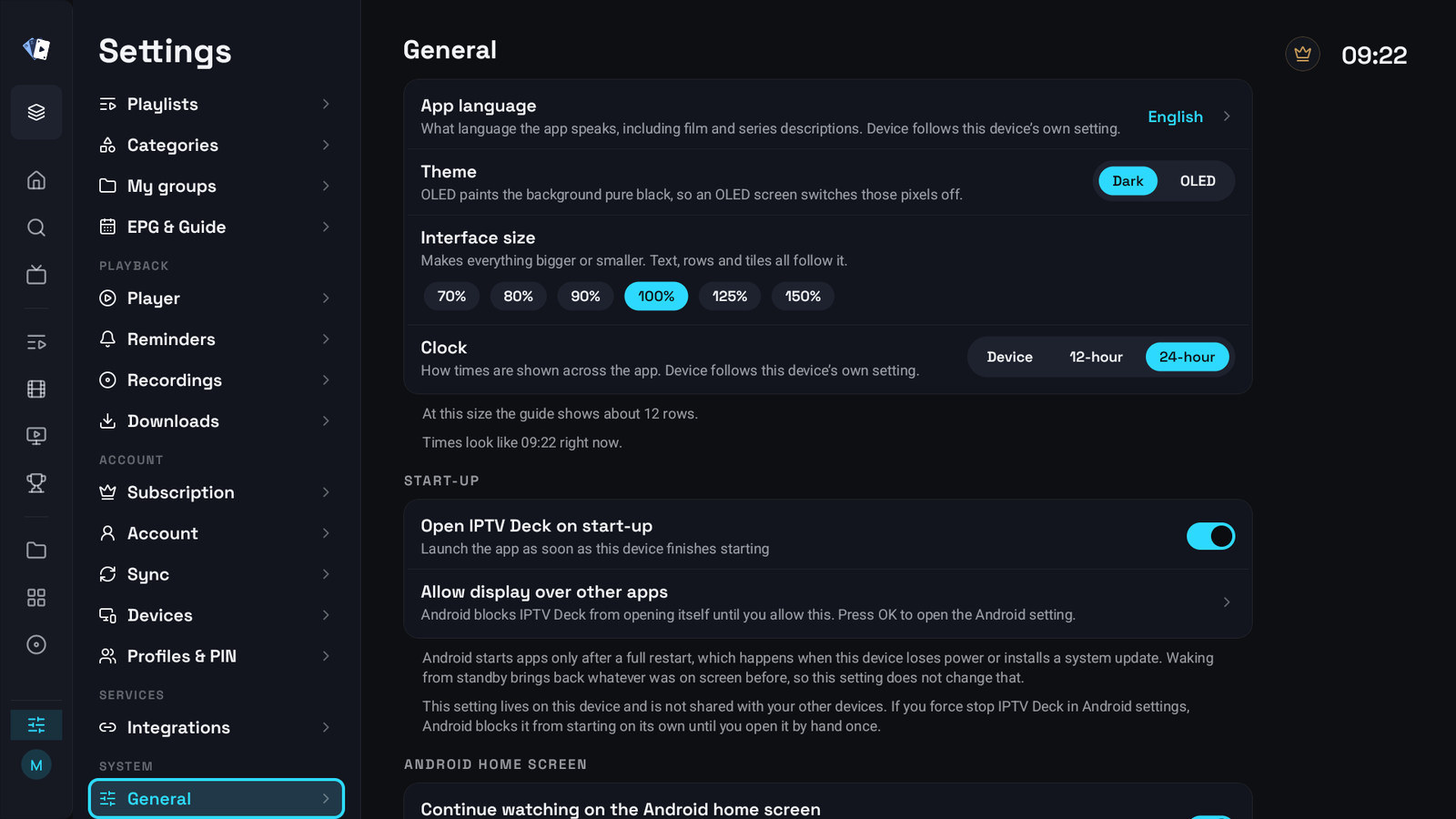
| Android TV, Fire TV, Apple TV, LG (webOS) and Samsung (Tizen) TVs | Settings → General for the language, Theme, the sizes, the columns, the side menu, the clock and Channel logo background. Settings → Appearance for the themes and colours. Settings → Home for the start screen and the Home rows. All three sit in the System group |
| Windows and the Mac | The same as a television: Settings → General, Settings → Appearance and Settings → Home |
| Account panel in your browser | Common settings → Appearance for the language, Theme, the clock and the look of the profile chosen in the top bar. Device settings → General, Side menu and Bottom tabs for the sizes, columns, channel logo background, menu and tabs of each device |
If Appearance is missing on an Android TV or Fire TV, the app installed there is older than the themes. Update it, and the page appears. The account panel says Needs a newer app on this device for such a device.
Themes
Section titled “Themes”A theme brings a background picture with its own accent colour and background colour. The first one, Plain, has no picture and is the usual look. The others come in groups:
| Group | Themes |
|---|---|
| Calm | Plain, Pitch stripes, Sky ribbon, Rain on glass, Palm shore, Film beam, Reading lamp, Firefly field, Dune glow, Starlit ridge, Ice floes, Misty hills, Grey peaks |
| Far away | White village, Glacier lake, Acacia sunset, Balloon dawn |
| Daylight | Lone tree, Sun stripes, Pool shade, Cotton sky, Cut paper |
| Moody | Storm light, Red volcano, Back alley, Night Earth |
| Pixel worlds | Rooftop rain, Low-poly isle, 8-bit keep |
| Little ones | Star rocket, Fish friends, Dino day, Sleepy owl, Night train, Sweet house |
Each card shows the theme’s name and its two colours, the accent and the background, above a small screen of the app drawn over the picture: the side menu and three tiles, the first one in the accent. The theme you use has its name and frame in the accent colour.
- On a phone each group is a row of cards you swipe sideways.
- On a television, Windows and the Mac the cards fill a grid under their group names, five in a row at the usual interface size and fewer when you make the interface bigger. The themes are the last group on that page, below the colours.
The picture fills the background behind the menus and lists. In a window or on a screen taller than it is wide, such as a phone held upright, the theme uses an upright version of its picture, and with Light colours a brighter version of it. Pictures are darkened a little where the menu and the lists sit, so the text stays readable.
The themes got new names, a new order and several new pictures in version 1.8.6. The theme you picked before stayed yours under its new name.
Colours
Section titled “Colours”| Setting | Options | What it does |
|---|---|---|
| Interface colours | Dark colours (at first) or Light colours | Light gives a light background with dark text and the bright version of the theme picture. The player stays dark |
| Accent colour | From the theme (at first), Cyan, Ice, Blue, Lavender, Mauve, Rose, Red, Coral, Amber, Sand, Olive, Sage, Mint, Teal, Stone | Buttons, progress bars and highlighted text |
| Background colour | From the theme (at first), Neutral, then the same fifteen colours | Tints the background, the side menu, the columns and the panels, each panel one step lighter than the menu |
| Selection colour (television, Windows and the Mac) | Accent (at first) or White, which is Black with light colours | The frame around whatever the remote is on |
While a colour comes from the theme, the row says so, for example Set by Pitch stripes. Pick a colour to use your own. With light colours the accent colours are deeper versions of the same fifteen, so they stay readable on a light page.
A phone has no selection frame, so Selection colour is only on a television, Windows and the Mac.
A colour of your own
Section titled “A colour of your own”On a phone or tablet, on Windows and the Mac, and in the account panel, the last swatch of
Accent colour and Background colour opens a colour picker. Windows and the Mac also have
Custom selection colour for the frame. Pick a colour, or type its code, such as #C62828, and
choose Use this colour.
The accent and the frame stay exactly as you chose them. A background colour of your own is made darker until light text reads well on it, or lighter with light colours, and the picker says so: The background stays dark enough for light text, so a bright colour comes out darker.
Android TV, Fire TV, Apple TV and LG and Samsung TVs have no picker. A colour you chose elsewhere shows there as Custom, ready to pick again, with the note To use a colour of your own, pick it on a phone or in the account panel.
Picture strength and panel opacity
Section titled “Picture strength and panel opacity”| Setting | Options | What it does |
|---|---|---|
| Picture strength | 25%, 45%, 65%, 85% | How much of the theme picture shows through behind menus and lists. Each theme sets its own until you pick one: 65% for the Daylight themes, 45% for the others |
| Panel opacity | 100%, 90% (at first), 80%, 70%, 60%, 50%, 40%, 30%, 20% | How solid the panels are over the theme picture and over a playing channel. 100% is fully solid |
When you switch themes, Picture strength moves to the new theme’s own value, unless you picked a strength yourself: then yours stays. With Plain, which has no picture, the row says Plain has no picture: a television greys it out, and a phone hides it.
Panel opacity reaches these places:
- Over a theme picture: the side menu, the category columns, the TV Guide, Movies and Series, the cards of Settings and the tiles on Home. On a phone and tablet too: the settings cards, the guide, the day list of catch-up, the Home tiles and the match cards on Home.
- Over a playing channel, with or without a theme picture: the channel list and the guide opened over the picture, such as TV Channels with the channel playing behind it, the guide you open from the player, or the channel list in the phone player.
- Title pages and Sports cards on a television follow it too, but stay fairly solid whatever you choose.
Sheets, menus, buttons, messages and the player controls stay solid. Without a theme picture the panels are solid everywhere except over a playing channel, and the row says How much of the playing channel shows through the channel list and the guide opened over it.
Over a bright picture a low choice would make text hard to read, so the panels stay more solid than you chose. The stronger the picture, the more, and the row tells you by how much, for example Over this picture the panels stay at 70% to keep the text readable. Lower Picture strength to let more of the picture through.
Dark, OLED and Auto
Section titled “Dark, OLED and Auto”Theme, in Settings → Appearance on a phone and Settings → General on a television and a computer:
| Option | What it does |
|---|---|
| Dark (at first) | The usual dark look |
| OLED | Paints the background pure black, so an OLED screen switches those pixels off |
| Auto (phone and tablet only) | Looks the same as Dark |
OLED black shows while the background colour is Neutral, which Plain, Back alley and Night Earth use. A tinted background colour keeps its tint. With Light colours this row has no effect.
Theme is one choice for the whole account, not for each profile.
Sizes on a television and a computer
Section titled “Sizes on a television and a computer”All in Settings → General:
| Setting | Options | What it does |
|---|---|---|
| Interface size | 70%, 80%, 90%, 100% (at first), 125%, 150% | Makes everything bigger or smaller: text, rows and tiles |
| List size | 100% (at first), 110%, 125%, 150% | Makes only the channel lists and the categories bigger |
| Menu size | 100% (at first), 110%, 125%, 150% | Makes only the side menu bigger |
Under the group, notes say how many rows of the guide fit at this size and how times look right now. With a large Interface size, List size and Menu size grow only as far as the screen has room for, and a note says how far, for example Lists are shown at 125% here, because a bigger interface leaves no room for more. On Windows and the Mac a taller window gives more room than a wider one.
A phone or tablet has no size settings: its text follows the text size set on the device itself.
Columns and the side menu
Section titled “Columns and the side menu”Also in Settings → General on a television and a computer:
| Setting | Options | What it does |
|---|---|---|
| Category column | Normal (at first), Wide, Extra wide | More room for the list on the left of the channel list, the guide, Movies, Series, groups, multiview and Settings |
| Channel column in TV Guide | Normal (at first), Wide, Extra wide | More room for long channel names. A wider column shows less of the timeline |
| Open a category when it is highlighted | Off at first | Moving through the categories of TV, Movies and Series shows each one without pressing OK |
| Hide categories while browsing (not on Windows and the Mac) | On at first | The category column slides away when you move into the list and comes back with Left, see Using it on a television |
| Fold the groups of Settings | Off at first | Settings opens with its groups closed. OK on a group opens it |
| Side menu | Every item shown at first, except Sports channels | Untick what you do not use, or tick Sports channels to give the list of sports channels its own item after Sports. Home and Settings always stay |
On Windows and the Mac the pin at the top of the side menu keeps the menu open beside every screen instead of folding to icons. The account panel has the same choice as Keep the side menu open.
Language and clock
Section titled “Language and clock”| Setting | Where | Options |
|---|---|---|
| App language | Settings → Appearance on a phone, Settings → General on a television and a computer | Device (at first), which follows the device’s own language, or English, Bahasa Indonesia, Deutsch, Español, Français, Italiano, Nederlands, Polski, Português, Română, Türkçe, العربية, اردو, हिन्दी |
| Clock | The same places | Device (at first), 12-hour or 24-hour, for every time in the app |
The language also sets the language of film and series descriptions. Arabic and Urdu turn the whole layout right to left. When that cannot happen at once, the app asks you to close it and open it again.
Both are one choice for the whole account and follow it to every device. A small clock over the picture while you watch is a separate setting, Clock while watching.
Channel logos without the tile
Section titled “Channel logos without the tile”Channel logo background decides what sits behind channel logos in rows and lists:
| Device | Where |
|---|---|
| Phone and tablet | Settings → Appearance, under Clock |
| Android TV, Fire TV, Apple TV, Windows, the Mac, LG and Samsung TVs | Settings → General, under Clock |
| Account panel | Device settings → General, for that device |
- Tile (at first): a dark tile behind each channel logo, on a mid grey one with light colours.
- None: the logo stands on the page itself. A logo close to the page colour, such as a white one with light colours or a black one with dark colours, can be hard to see.
On a phone and tablet a channel without a logo keeps its coloured tile with initials either way. On a television or a computer with None, a channel without a logo shows its name in the text colour of the page.
If the row is missing on an Android TV or Fire TV, the app installed there is too old for it. The account panel says Needs a newer app on this device for such a device.
Bottom tabs on a phone and tablet
Section titled “Bottom tabs on a phone and tablet”Settings → Appearance → Bottom tabs chooses the tabs along the bottom of the screen: turn Live, Movies, Series and Sports on or off. Home and Settings always stay. Live, Movies and Series are on at first, and Sports stays off until you turn it on. The choice belongs to the device, and the account panel changes it under Bottom tabs in that device’s Device settings. See On a phone.
The layout on a tablet
Section titled “The layout on a tablet”On a tablet, TV layout (experimental) switches to the big screen interface of a television, in landscape. Tap works too, and a swipe from the left edge goes back. It is under Layout in Settings → Appearance in the phone layout, and under Layout in Settings → General in the TV layout, to switch back. It stays on that tablet. See On a tablet.
The picture in the player
Section titled “The picture in the player”How a film or a channel fills the screen is chosen in the player, not in Appearance: Fit, Fill, Stretch, 16:9, 4:3 or 21:9, with zoom on top. With Remember zoom & aspect ratio on, in the player settings, the choice is kept separately for live channels, films and series on that device. See The player and Player settings.
There is no separate setting for the style of tiles, posters or channel cards: they follow the theme, the colours and Panel opacity.
Each profile has its own look
Section titled “Each profile has its own look”The theme, Interface colours, the accent, background and selection colours, your own colours, Picture strength and Panel opacity belong to the profile and follow it to every device. Each person in the house can have their own look.
- The first profile starts with the look the device already had. Every other profile starts with Plain.
- A parent sets the look of a child’s profile from their own, in What … sees, see Setting up a child’s profile. A Kids profile can change its own look in its short Settings.
- The account panel edits the look of the profile chosen in its top bar, with a preview of a phone or a television next to it.
Who keeps what
Section titled “Who keeps what”| Setting | Kept for | Account panel |
|---|---|---|
| Theme picture, Interface colours, Accent colour, Background colour, Selection colour, your own colours, Picture strength, Panel opacity | Each profile, on every device | Edits it, for the profile chosen in the top bar |
| Theme (Dark, OLED, Auto), App language, Clock | The whole account, on every device | Edits it |
| Interface size, List size, Menu size, Category column, Channel column in TV Guide, Open a category when it is highlighted, Hide categories while browsing, Fold the groups of Settings, Side menu, keeping the side menu open | This device | Edits it, for each television and computer |
| Channel logo background | This device | Edits it, for each phone, tablet, television and computer |
| Bottom tabs | This phone or tablet | Edits it, for each phone and tablet |
| TV layout (experimental) | This tablet | Shows it, changes only on the tablet |
| The Home rows and the start screen | Each profile, on this device | Edits it, see The home screen |
Settings kept on a device are saved in your account too, so they come back after you reinstall the app on that device, see Device settings come back after a reinstall.
